Auto-Captioning
Introduction
Auto-captioning takes audio data and sends it to a real time transcription service, which uses artificial intelligence to transcribe it as text. The transcription is either sent back to the video conferencing application or displayed by a seperate application, such as a web browser.
Auto-captioning can be useful in situations where:
- Ad hoc meetings do not allow time to book captioning by a third party
- The contents of the meeting are confidential and participants don't want a 3rd party listening in
- 100% accuracy is not critical, such as a catch-up with a work colleague
MS Teams and Auto-Captioning
Hard of hearing staff members have said that the auto-captioning feature in MS Teams has been a huge help in their meetings. They note that the having the other participants turn on captioning helps a lot, because seeing their own words misinterpreted makes people slow down and speak more clearly.
We tested MS Teams with a script of 1300 words and found that it was 97% accurate (words only, not punctuation). However, the missing 3% does make a big difference. Auto-captioning really struggles with non-standard words, such as names.
Auto-captioning has been enabled for all staff and students.
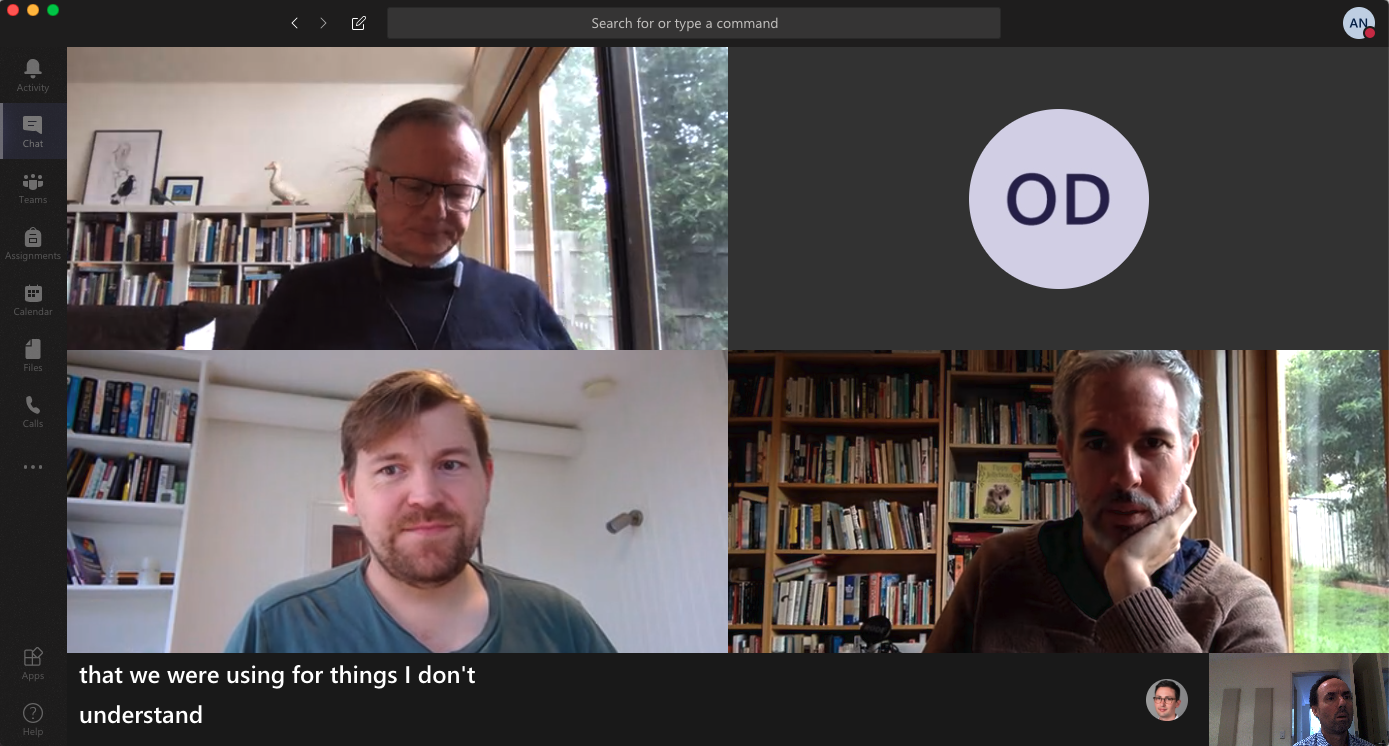
Costs
Auto-captions are free within MS Teams. It is currently available to all staff and students.
Pros
- Cost. It is cheaper than real live-captioning.
- Ease of use. Transcripts can be set up by users themselves.
- Captions are integrated into the Teams interface.
Cons
- Accuracy. Auto-transcripts are only about 85% - 90% accurate which can be a deal breaker, especially when discipline specific vocabulary is involved.
- Engagement. Students with hearing impairments advise that as soon as they see a video is auto-captioned, they turn it off.
Further Information
Zoom Meetings and Live Transcription
Costs
Auto-captions (live transcription) is free within Zoom. It is currently available to all staff and students.
Pros
- Cost. It is cheaper than real live-captioning.
- Captions are integrated into the Zoom interface.
- Available in both meetings and webinars.
Cons
- The meeting host needs to enable auto-captioning, by clicking on the 'Live Transcript' button and then clicking 'Enable'..
- Accuracy. Auto-transcripts are only about 85% - 90% accurate which can be a deal breaker, especially when discipline specific vocabulary is involved.
- Engagement. Students with hearing impairments advise that as soon as they see a video is auto-captioned, they turn it off.
Further Information
Zoom Meetings and Live Transcription.
Zoom Cloud Recordings and Transcription
Audio transcripts can be created for Zoom Cloud Recordings.
Auto-Captioning FAQ
Q. If auto-captioning is so good, why do we need live remote captioning?
Auto-captioning is about 85 - 95% accurate, whereas live remote captioning, by a human, is 99% accurate. The 5 to 15% of errors makes a huge difference. Auto-captioning is most likely to make errors with uncommon words, such as domain specific vocabulary.
Q. Does auto-captioning meet accessibility requirements?
No. Automated live transcription is not a replacement for live remote captioning, particularly where a high degree of accuracy is required, such as a lecture or tutorial. As a result, Live Remote Captioning services will continue to be provided, via Disability Support, to students who are deaf or hard of hearing.
Need web help?
All websites and applications which form part of the University web presence are expected to be compliant with the W3C's Web Accessibility Guidelines (WCAG) 2.2 AA guidelines.
Get web accessibility help