Getting Started with Microsoft Stream
As part of Office365, there is a video hosting platform called Stream. If you upload a video, Stream will use AI to automatically generate captions. The quality is surprisingly good. It also has an editor which allows you to edit the captions. Once you are done, you can download the captions, as a WebVTT file, and then use it for whatever platform you like.
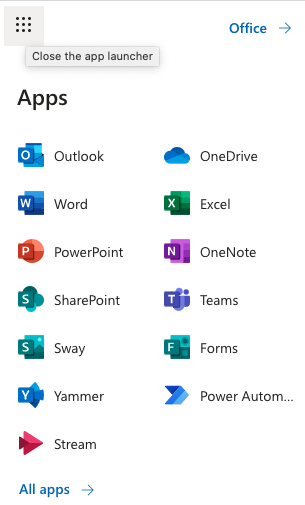
You can access Stream by logging into your University Office 365 account. At the top left of the page, click on the App Launcher. You will see a list of apps, including Stream. If you can't see a link to Stream, click on ‘All apps’.
Uploading Videos
After opening Stream, click on 'Create' > 'Upload video'. It then auto-captions it and you can edit the results. By default, your uploads are set to private.
To view your uploaded video, click on 'My content' > 'Videos'. Then click the title of the video. The video will be displayed, together with a Transcript window. The creation of the transcript may take some time. Meanwhile, the following message will appear 'The transcript is taking longer than expected. Refresh, or check back later.'

Once the transcript is ready you will receive an email. You will need to refresh the page to view the transcript.
Editing Captions
Once the transcript has been produced, you can edit it by clicking on the 'Edit transcript' icon.

Downloading Captions
To download your uploaded videos, click on 'My content' > 'Videos'. Locate the video and click on the 'Update video details' icon.

Under 'Options' you will be able to download the captions file.
Converting WebVTT to SRT
Stream produces captions in WebVTT format.
You can easily convert WebVTT to SRT using an online converter.
If you prefer another format, you can convert WebVTT to TXT, Word or PDF.
Sometimes you want to convert timed text files, such as SRT or VTT, into transcripts (TXT). There are several free online tools that will do this for you.
Need web help?
All websites and applications which form part of the University web presence are expected to be compliant with the W3C's Web Accessibility Guidelines (WCAG) 2.2 AA guidelines.
Get web accessibility help