Okta FastPass
Log in quicker, more securely,
and with no more MFA codes.
They call it FastPass for a reason!

FastPass is a great feature in Okta Verify that allows you to log in without typing your password and responding to an Okta notification each time.
Set up takes about 5–10 minutes, but once it’s done, FastPass makes accessing your University account much quicker. It recognises your computer and then just needs your username as well as confirmation that it’s really you – using your computer’s built in security (Touch ID, or Windows Hello). Note that currently FastPass does not work on Linux.
Why use Okta FastPass?
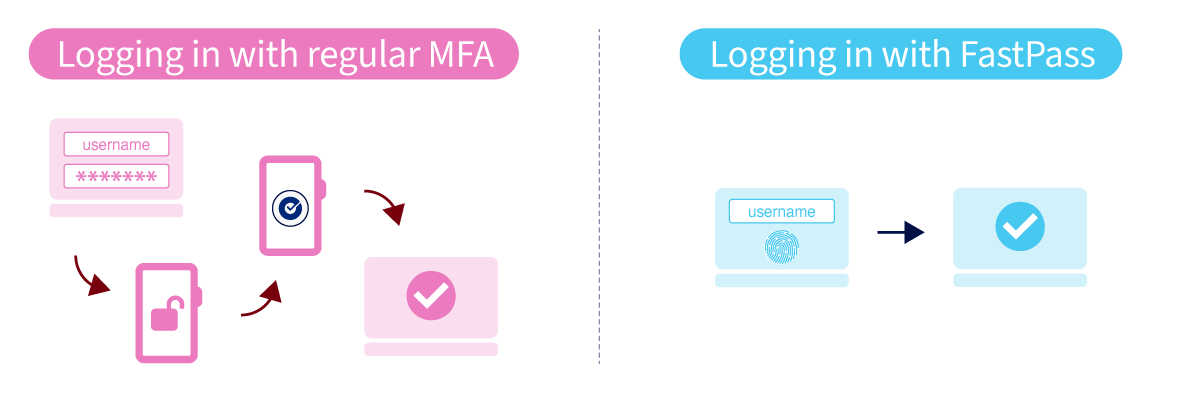
In short, because it's just so much faster! As you can see below, logging in with FastPass is a much quicker process.
How is it more secure?
There are many ways passwords can be stolen. One of the most common is phishing where cyber criminals trick you into entering your password on fake login pages that look like the real thing. Some sophisticated attacks can even trick you into sharing your multi-factor authentication (MFA) code, giving the attacker everything they need to access your account.
FastPass creates a digital key that’s securely stored on your computer, locked behind your computer's security, such as biometrics (Touch ID or Windows Hello). Similar to a passkey, this key is unique to you and your device.
What makes FastPass different is that it doesn't just rely on the digital key. It also confirms that the computer you're using has been registered to your Okta account.
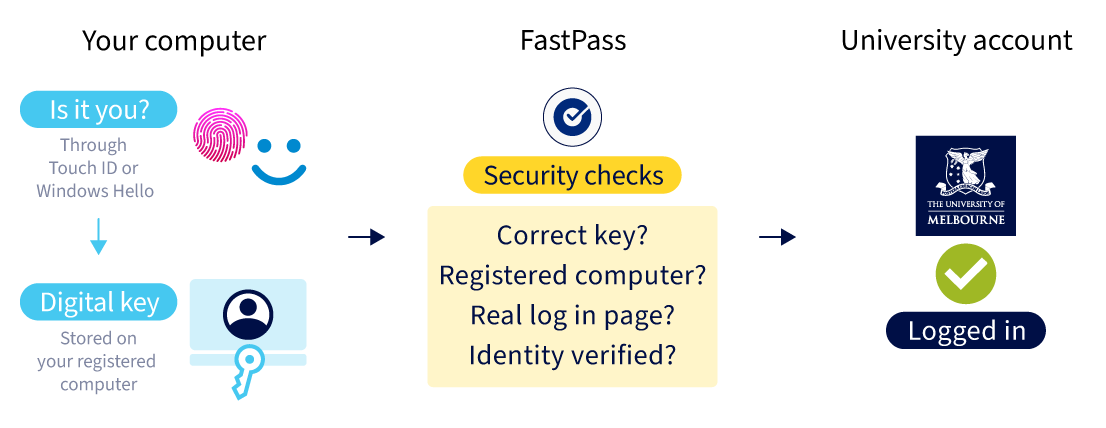
All you need to do is enter your username and verify it's really you using Touch ID or Windows Hello. Behind the scenes, FastPass is automatically completing several security checks.
That’s why they call it FastPass! Most of the security checks happen automatically in the background, making it faster and easier to log in. Most importantly it means FastPass is resistant to phishing because there’s no password or MFA code for you to accidentally hand over.
Setting up and using FastPass
Follow the link below for instructions on how to set up and use Okta FastPass, as well as Passkeys which are also available to use with your University account.
Set up Okta FastPass Log in using Okta Fast Pass
While this means less password typing and fewer steps to log in, your University password is still important. You’ll need your password when using shared devices such as lab or library computers, so make sure you know it or have it securely stores in a password manager.
What about passkeys?
Both FastPass and passkeys help protect your account from the risks mentioned above. So why choose one over the other?
FastPass offers an extra layer of protection by not only verifying the digital key, but also confirming that you're signing in from a computer that’s been registered to your Okta account.
In terms of the everyday experience, they both will feels very similar, but those extra security checks FastPass completes in the background, help keep both your account and University systems even more secure while still being a much faster way to log in.
If you’ve set up a passkey, you can keep using it, but we encourage you to think about moving over to FastPass.