Simple swaps to improve LMS accessibility for your subject
Making your LMS subject fully accessible to all students is a key part of the University's Disability Inclusion Action Plan. In addition to this, most accessible design practices are also good general design practice, so while they’re essential for some students, they’re beneficial for everyone.
Making your subject accessible to all students may seem like a daunting task. You may be concerned that it will require a high level of technical expertise or take an enormous amount of time. However, there are some simple swaps that you can make to improve the accessibility of your subject right away. You don’t need to tackle them all at once, either: if you want, just select one swap to implement for your next teaching period.
Swap from custom formatting to the built-in styles
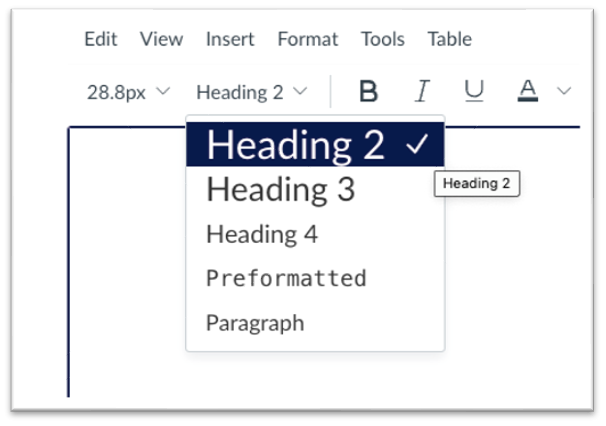
If you are using font sizes, colour, italics, or underlining to structure your page, swap to the LMS built-in styles for headers, lists and paragraph text. Using built-in styles will make it much easier for screen reader users to navigate the page. Additionally, the built-in styles also use left alignment and accessible fonts, which helps students with dyslexia to read more clearly.
Swap to more accessible fonts
Font choice can make a big difference to on-screen readability for everyone, but it’s particularly important for those with low vision or dyslexia. If you’re using the built-in styles in the LMS, you will already have left-aligned text in an accessible font and colour. If you’re using a different font on your LMS pages, consider changing to the default font.
When choosing a font for teaching materials, consider the following guidelines:
- Avoid cursive or script fonts
- Avoid light / thin fonts and italics
- Choose “open” fonts with larger white spaces.
Recommended fonts include Calibri, Verdana, and Tahoma.
Swap from 'click here’ to meaningful link text
Some hyperlinks are more accessible than others. For example, if a web address is used as a link, a screen reader will announce the full combination of letters, numbers, underscores and other characters that make up the URL. This is frustrating and unlikely to be meaningful. Similarly, generic words or phrases such as ‘click here’ or ‘read more’, or buttons that say ‘next’, give a screen reader user no indication of where the link will take them. Meaningful link text conveys the purpose of the link and enables a screen reader user to scan and navigate the page using the links. Consider the following example:
Option 1: Read this article on accessibility. (Don't use this one!)
Option 2: Read this article on accessibility.
The link text in the first option isn’t meaningful when read out of context: it gives screen reader users no information about the destination or purpose of the link. The second option is more meaningful and accessible.
Tip: there's no need to include ‘link to’ in your link text as most screen readers say the word ‘link’ before reading links.
Swap from other survey tools to Microsoft Forms
If you are using a survey or questionnaire to gather information or feedback from students, consider switching to Microsoft Forms. All University of Melbourne staff and students have access to Microsoft Forms, which is one of the most accessible survey tools. Responses can be viewed online or downloaded as a spreadsheet. Note that Microsoft Forms is not suitable for sensitive research data, which requires tools like RedCap or Qualtrics, but it is fine for everyday surveys. To find an appropriate tool for your research data, use the Research Data Management System Finder.
Swap from PDFs to LMS pages or accessible files
The biggest accessibility issue with PDFs is that they do not work well with assistive technology. For students who use screen readers, the text in many PDF files is completely unreadable. Other PDFs may be somewhat more readable but still very difficult to access meaningfully with assistive technology. Check out the short video the truth about PDFs to find out why.
The most accessible format for learning materials is publishing your content directly into LMS pages as they can be navigated using a range of assistive technologies, including screen readers. If this isn’t practical for the content of your PDF file, there are other options, such as:
- Upload the Word or PowerPoint version of the files instead of, or alongside, your PDF. This is a very simple swap – just don’t click ‘Print to PDF’!
- Link to the web version of a reading where available. The Readings Online team can advise on linking to accessible formats.
Making swaps and improvements easier: The Ally Accessibility Report
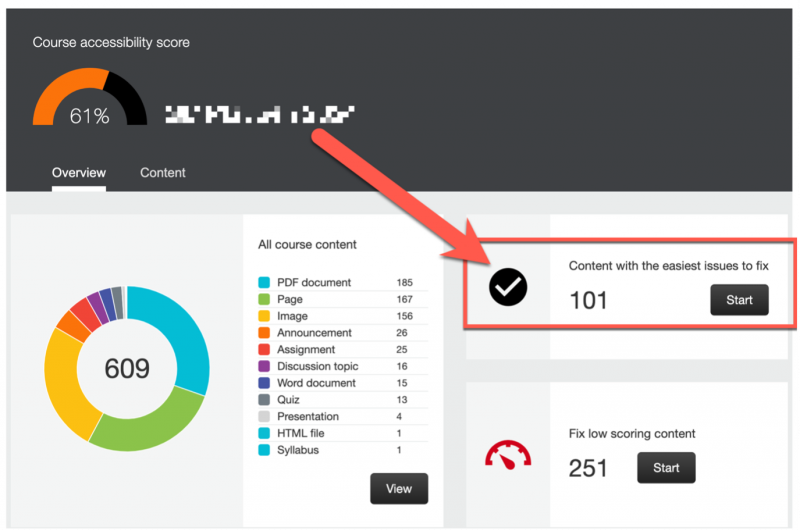
Another way to make easy accessibility improvements to your subject in the LMS is to use the Accessibility Report. You can find it in the subject menu of every subject. On the dashboard, you will find an option to look at the content with the easiest issues to fix.
Resources and references
- Ally Accessibility Report
- Microsoft, Screen reader support for Microsoft Forms (2024)
- Ten tips for creating accessible subjects in the LMS
- The problem with PDFs
- Vision Australia Typography in Inclusive Design Part 2: Choosing typefaces and laying out text content (2022)
- WCAG, Writing Meaningful Link Text (2022)
- WebAIM, Utah State University Links and Hypertext (2024)