Subject-level learning analytics available
The learning tools that are supported at the University of Melbourne have varying analytics available in the interface. It is good practice to view analytics with a learning lens, with a particular learning and teaching question you are trying to understand and bring in a few data sources.
Overall student feedback
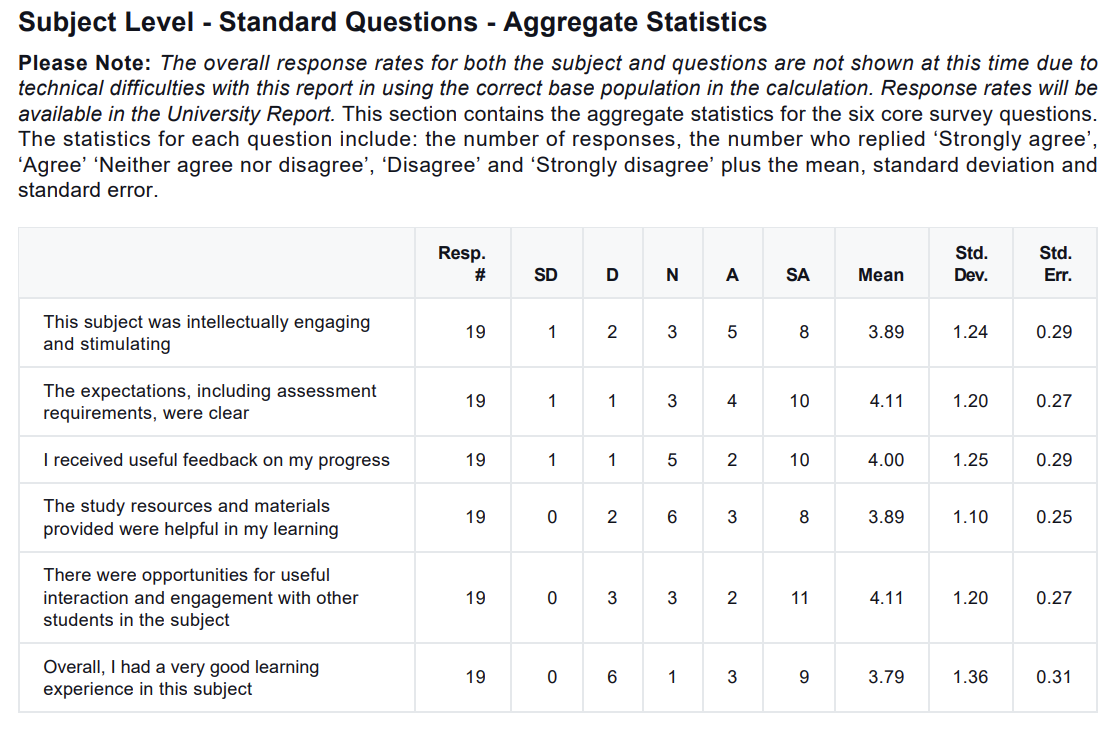
End of subject survey
How to access
Sent as a PDF to subject coordinators.
Learning analytics available
- Aggregate statistics on the survey standard questions
- Free text responses to the two open-ended questions
Rating on learning analytics
Foundational: Essential learning analytics with standard reporting.
ESS report
Students who need attention
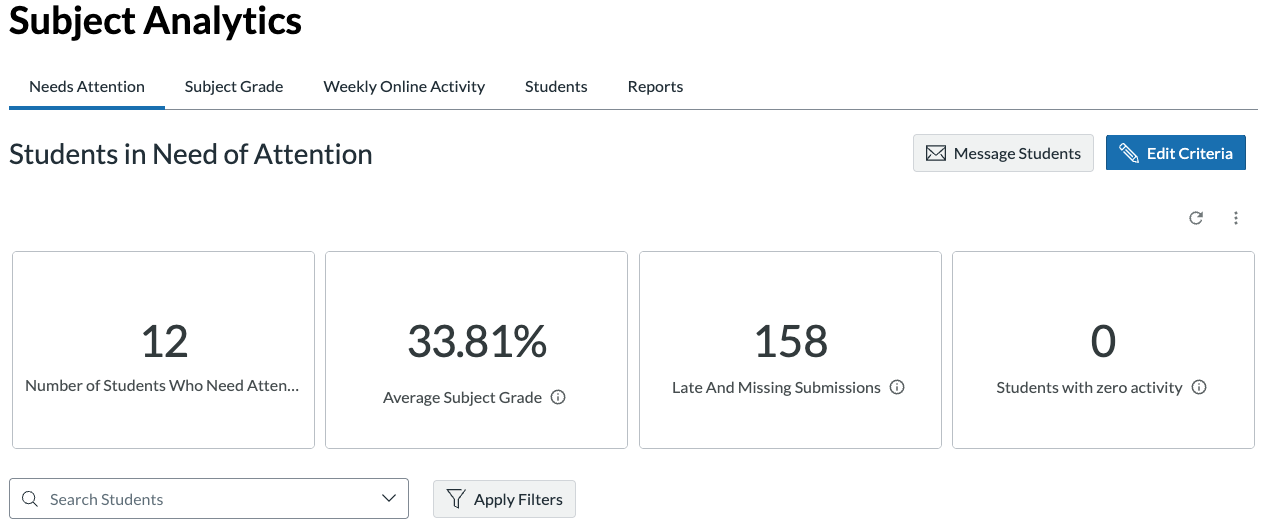
Canvas: Students in need of attention
How to access
View and download from your Canvas subject's Subject Analytics page.
To access your Canvas subject's Subject Analytics page:
- Go to the Home page
- Click the Subject Analytics button
- Select the Needs Attention tab.
Learning analytics available
Based on users set criteria:
- Number of student who need attention
- Average student grade
- Late and missing submission
- Students with zero activity.
Includes ability to 'Message Students' meeting the set criteria.
Rating on learning analytics
Detailed: Comprehensive analytics with advanced reporting and visualisations, some insights.
Canvas: Student in need of attention
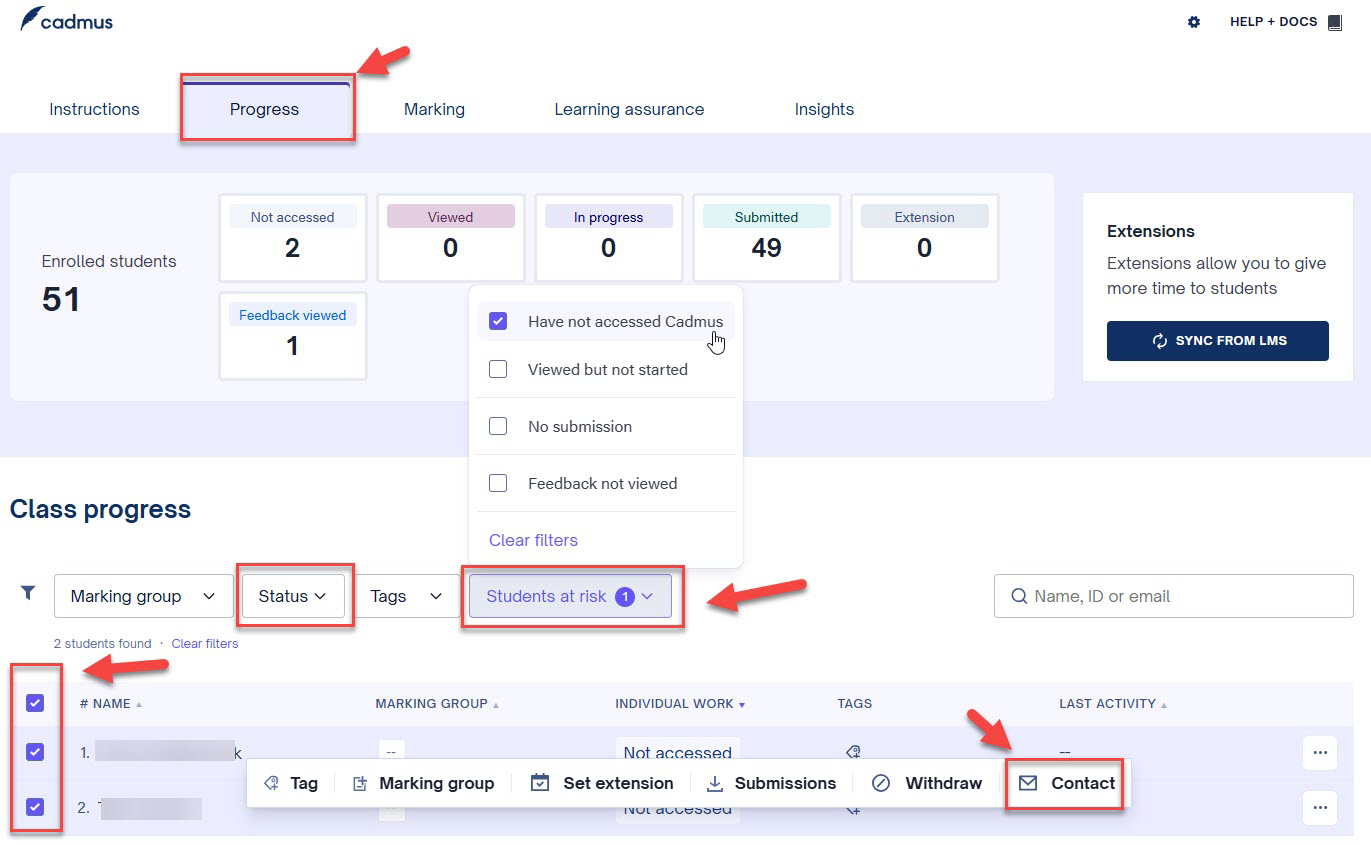
Cadmus: Students at Risk
How to access?
In your Canvas Subject:
- Click the Assignments link in the subject navigation menu
- On the Assignments page, select a Cadmus assignment
- Click the Go to Cadmus button
- Select the Progress tab
- Click the Students at Risk filter drop down menu
- Filter students at risk by selecting from the available checkboxes.
Learning analytics available
Filter students progress by Students at Risk categories and other status, check names and copy selected email addresses to a clipboard.
Rating on learning analytics
Foundational: Essential learning analytics with standard reporting
Cadmus: Students at risk
Student subject activities engagement insights
Canvas: Subject Activity report
How to access
View and download from your Canvas subject's Subject Analytics page.
To access your Canvas subject's Subject Analytics page:
- Go to the Home page
- Click the Subject Analytics button
- Click the Reports tab.
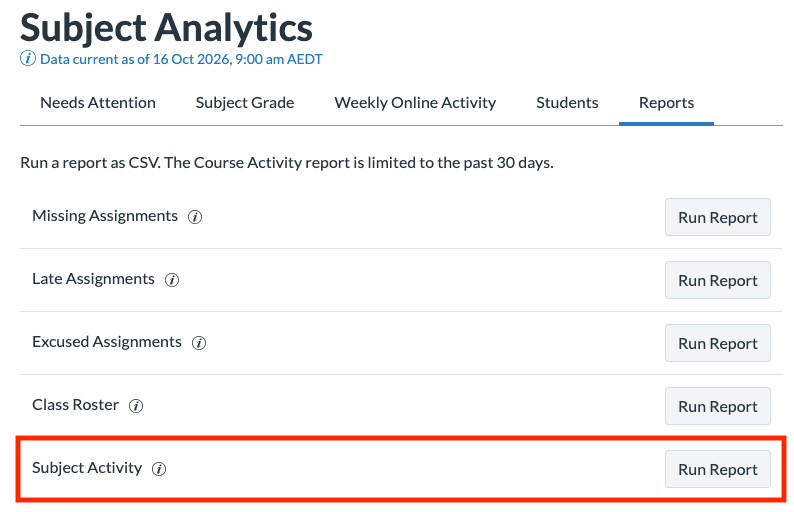
- Click the Subject Activity Run Report button.
Learning analytics available
- Subject (Course) activity report (the last 30 days of data)
- For each student in your subject the report includes a list of:
- Content items they have visited
- Number of times they visited the item
- Number of participations on the item
- First view date
- Last view date.
Rating on learning analytics
Foundational: Essential learning analytics with standard reporting.
Canvas: Subject activity report
Canvas: Weekly Online Activity
How to access
View and download from your Canvas subject's Subject Analytics page.
To access your Canvas subject's Subject Analytics page:
- Go to the Home page
- Click the Subject Analytics button
- Select the Weekly Online Activity tab.
Learning analytics available
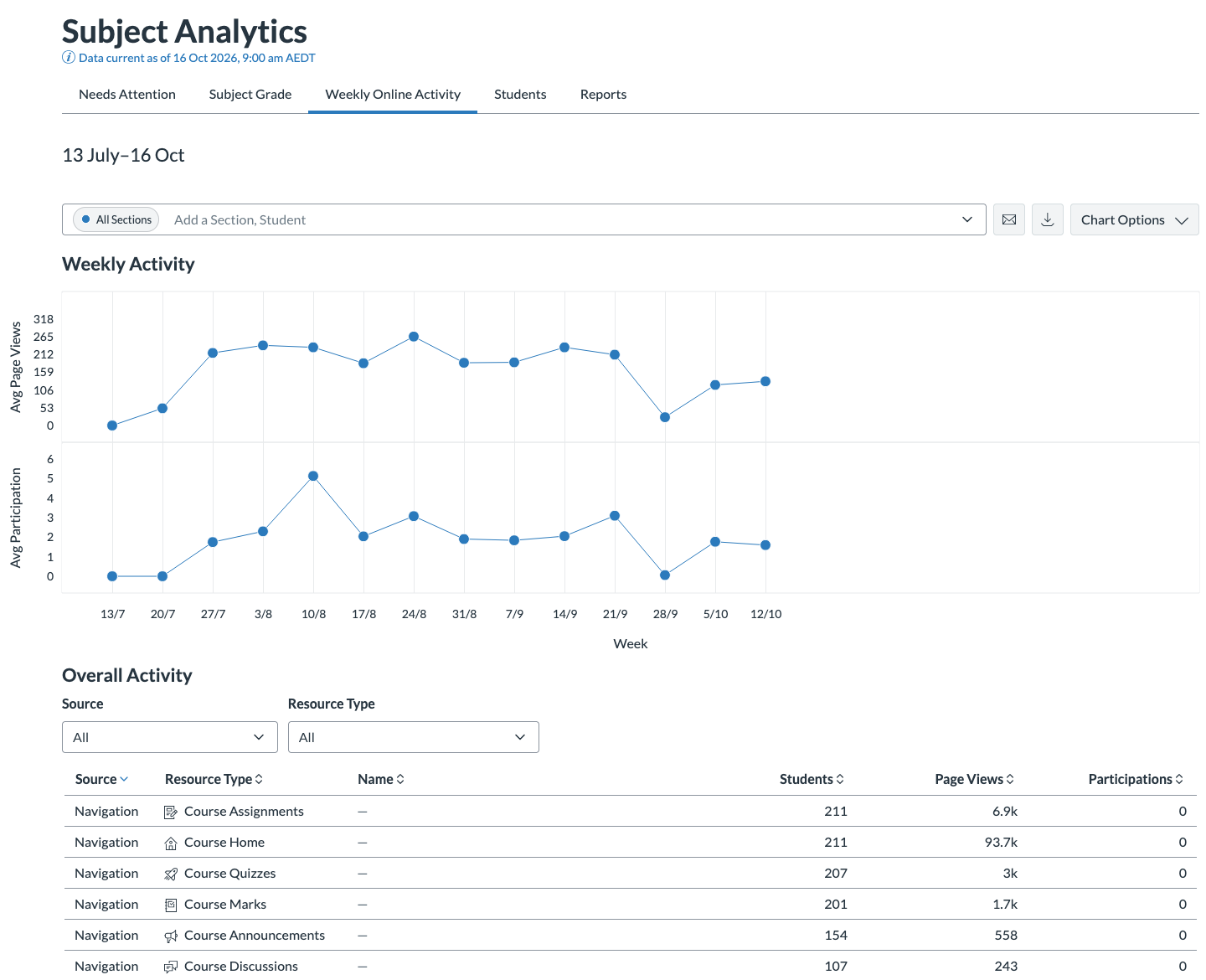
- Graph with average pages views and participation by week
- Table with Canvas resource list with number of students, page views and participations per resource
- Summary view or filter on section or individual student
Rating on learning analytics
Foundational: Essential learning analytics with standard reporting
Canvas: Weekly Online Activity
Canvas: Discussion analytics
How to access
To access your Canvas subject's Subject Analytics page:
- Go to the Home page
- Click the Subject Analytics button
- Select the Weekly Online Activity tab.
Learning analytics available
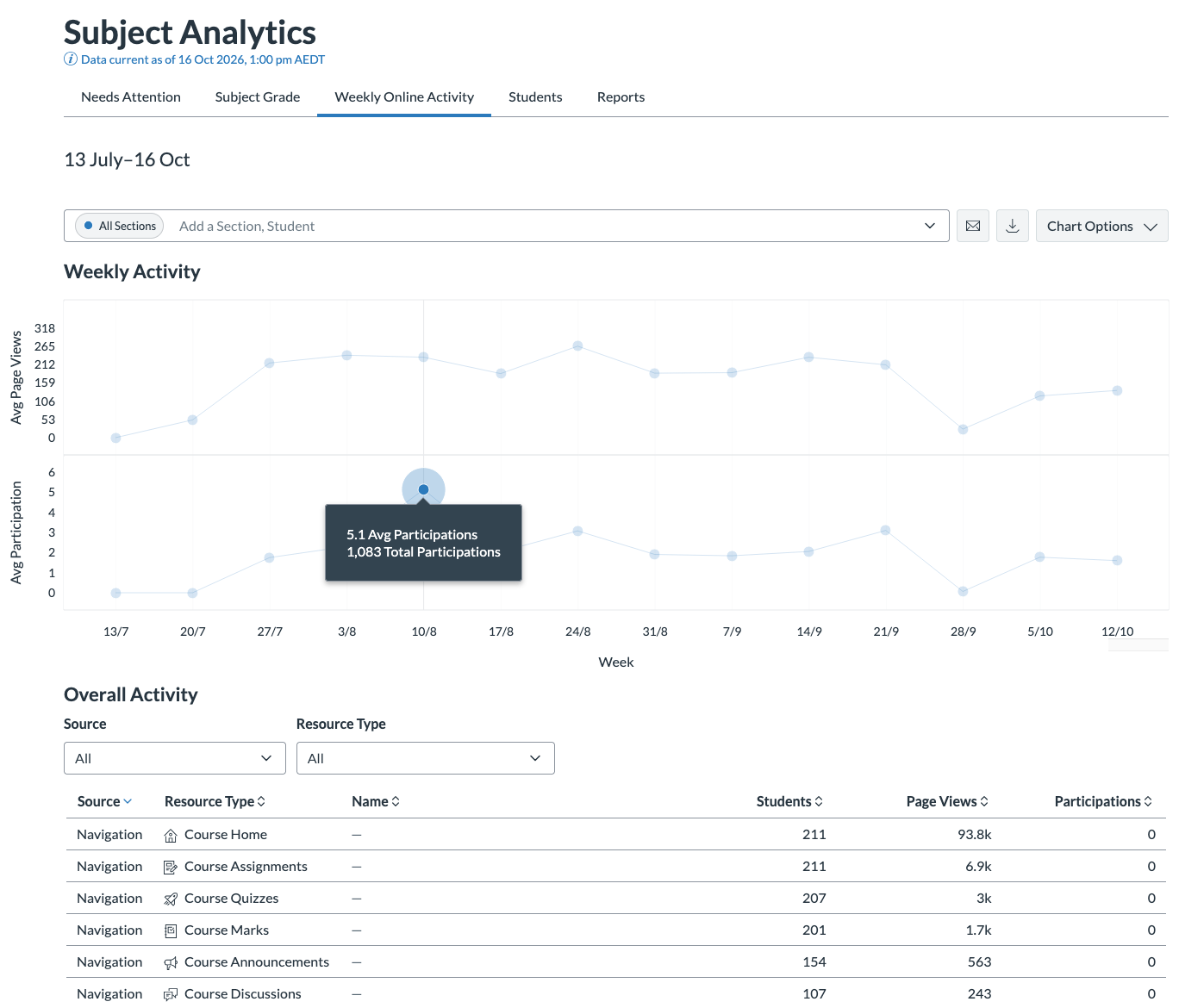
Participation analytics and viewing the analytics available on the particular item in Weekly Online Activity within and the Subject Analytics button provide overall engagement numbers on Canvas Discussions.
Students lets you view the participation analytics and items participated in for an individual student.
Rating on learning analytics
Foundational: Essential learning analytics with standard reporting.
Canvas participation
Canvas: Attendance tool
How to access
- In the Canvas subject navigation menu, click the Attendence link.
- In the top right corner of the Attendence window, click the settings cog icon.
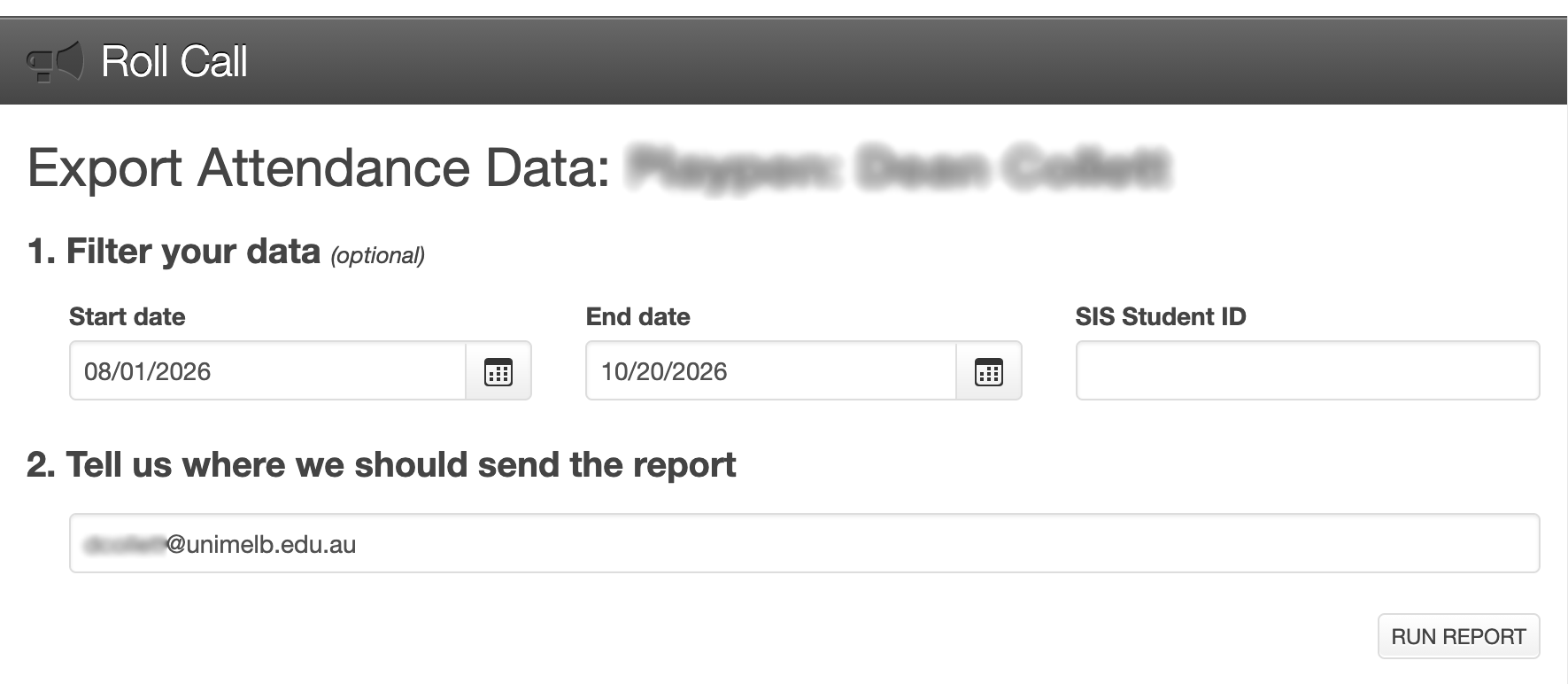
- Select Attendance Report.
Learning analytics available
- Start and end date
- Filtering by subject or student
- Attendence report sent to the email specified.
Rating on learning analytics
Foundational: Essential learning analytics with standard reporting.
Canvas Attendance report
Lecture Capture (EchoVideo)
How to access
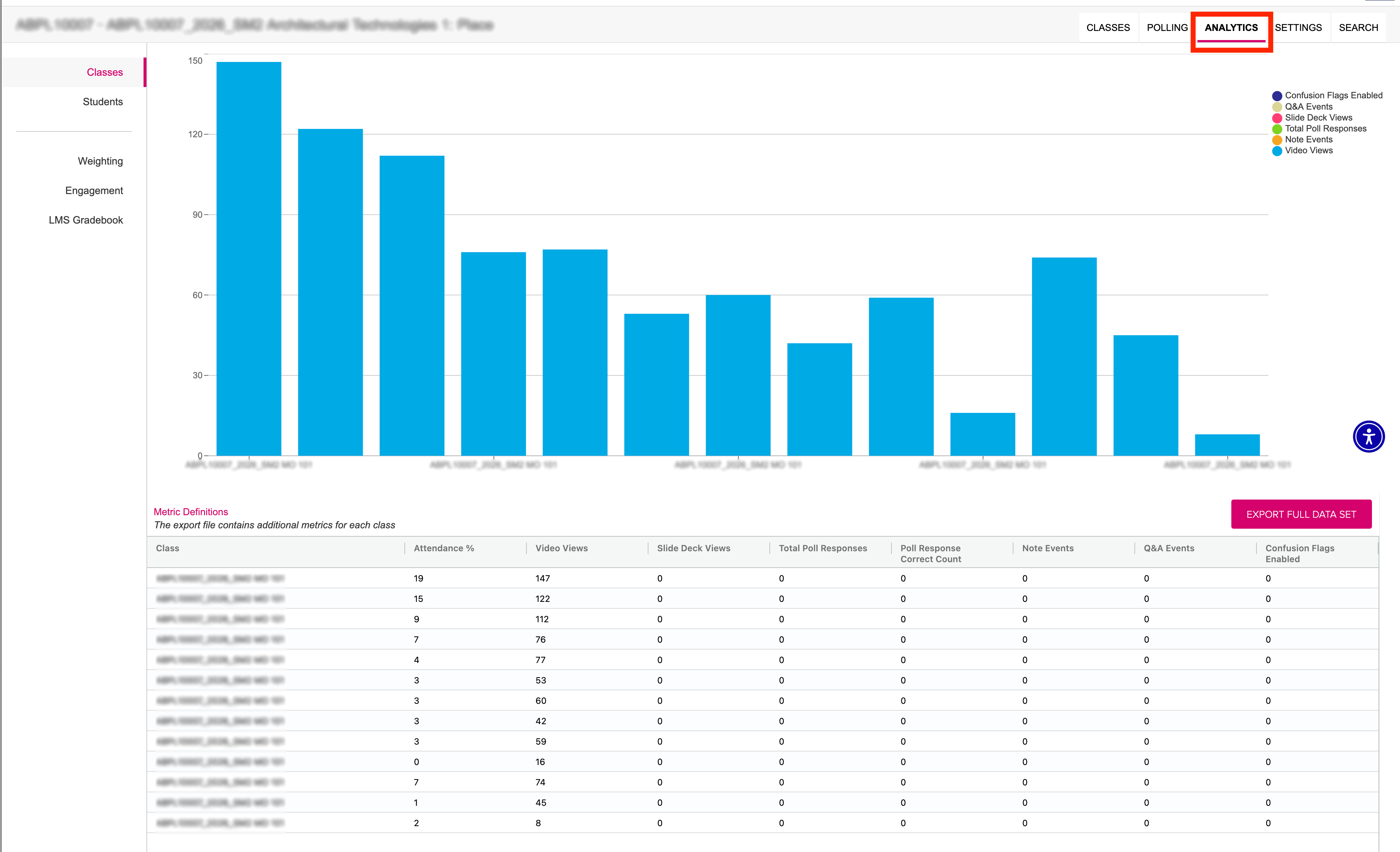
To access your Canvas subject's Lecture Capture (EchoVideo) page:
- In the Canvas subject navigation menu, click the Lecture Capture link.
- Select the Analytics tab located next to the subject code.
Learning analytics available
Classes tab
Summary analytics for EchoVideo views in your subject
Includes:
- Graph views per EchoVideo
- Table views per EchoVideo
- Able to click on an EchoVideo in the table and see viewing analytics.
Students tab
- Table with individual student viewing analytics of EchoVideos in your subject.
- Engagement score is a configurable metric that should be customised for the insights you wish to gain.
Does not include viewing of Echovideos' embedded in your subject and not in Lecture Capture link. For embedded EchoVideos' you can view the analytics by going to your EchoVideo Library, clicking on the video, and going to the Analytics tab
Rating on learning analytics
Foundational: Essential learning analytics with standard reporting.
Lecture Capture (EchoVideo) analytics
Readings Online
How to access
To access your Canvas subject's Readings Online page:
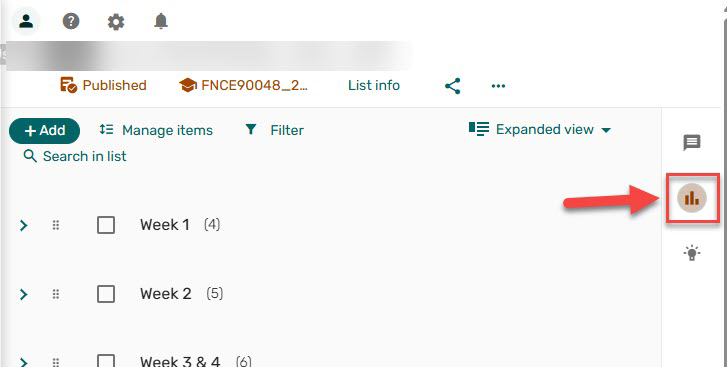
- In the Canvas subject navigation menu, click the Readings Online link.
- Select the Analytics tab located next to the subject code.
Learning analytics available
Table with List Usage including:
- Start date
- End date
- Total items
- Number of students
- Active students
- Total full text access
- Number of loans.
Table with Item Usage including:
- Item title
- Active students number
- Student who viewed full text number
- Due date
- Students how marked as done
- Number of loans.
Note unable to view which student has accessed each reading, only number of students who have accessed the reading.
Rating on learning analytics
Basic: Minimal data collection and reporting.
Readings Online: Analytics
H5P
How to access
- Log in to H5P at unimelb.h5p.com.
- Open an H5P item.
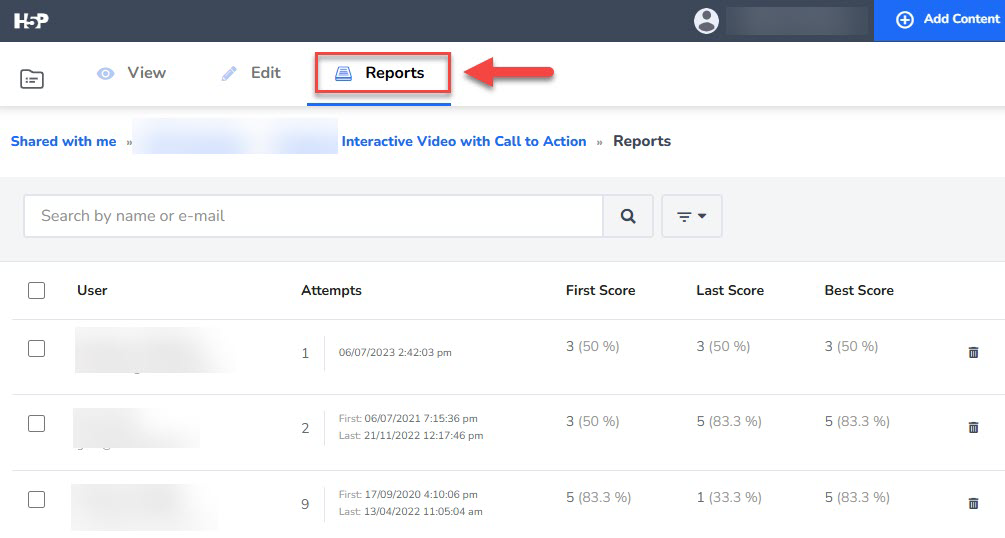
- Select the Reports tab.
First time H5P users must activate and connect their H5P account to the LMS.
Learning analytics available
For each published H5P with student engagement, the Reports tab displays a table with:
- User
- Attempts (count, dates and time)
- First score
- Last score
- Best score
- Ability to drill down on a student and view each attempt and the students response.
Rating on learning analytics
Foundational: Essential learning analytics with standard reporting.
H5P analytics
Ed Discussion
How to access
To access your Canvas subject's Ed Discussion page:
- In the Canvas subject navigation menu, click the Ed Discussion link.
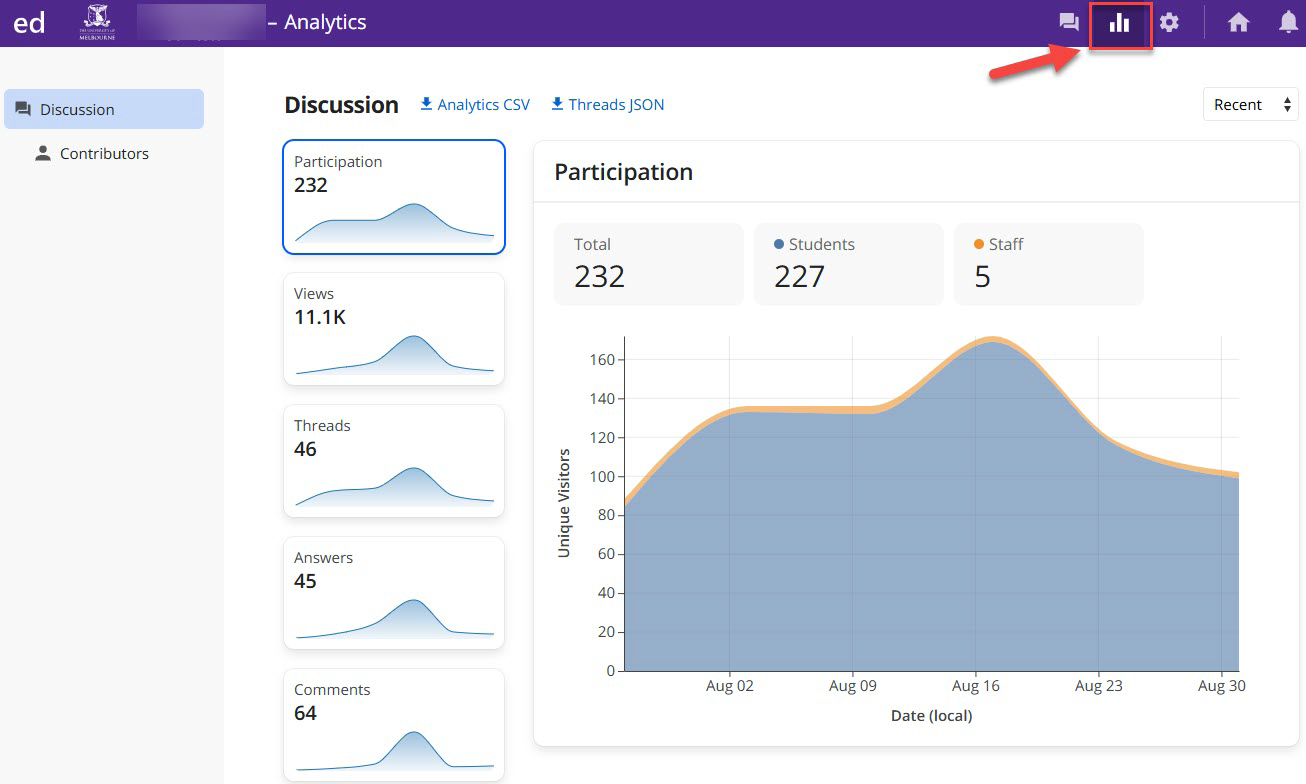
- Select the Analytics tab.
Learning analytics available
- Graph with options to view over time the number of:
- Participants
- Views
- Threads
- Answers
- Comments
- Tables. Top contributors broken down to:
- Askers
- Answers
- Commentors
- Viewers
- Hearted
- Endorsed.
- Contributors tab. Lists all users with number of:
- Views
- Threads
- Answers
- Comments
- Hearts.
Rating on learning analytics
Foundational: Essential learning analytics with standard reporting.
Ed Discussion analytics
Padlet
How to access
- Open a Padlet board, either by:
- Logging into the Padlet website.
- Accessing Padlet in an existing Canvas Assignment or Canvas page.
- On your Padlet board, click the More Padlet actions (3 dots in a circle) icon.
- Click the Details link to view About this board which contains engagement analytics for the Padlet board.
Learning analytics available
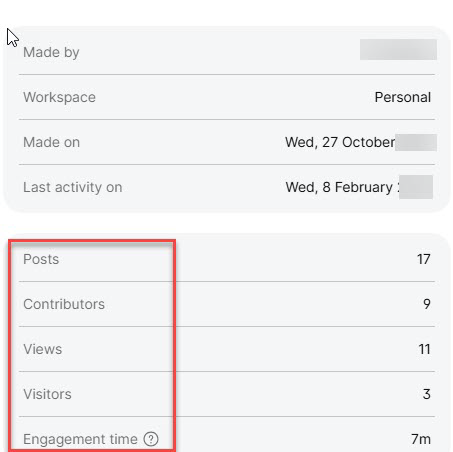
These include:
- Posts: Number of posts
- Contributors: Number of users that have posted on the padlet
- Views: Number of times the board has been viewed
- Visitors: Number of unique visitors
- Engagement time: Total amount of time users have spent on the board
Rating on learning analytics
Foundational: Essential learning analytics with standard reporting.
Padlet board analytics
Learning analytics available
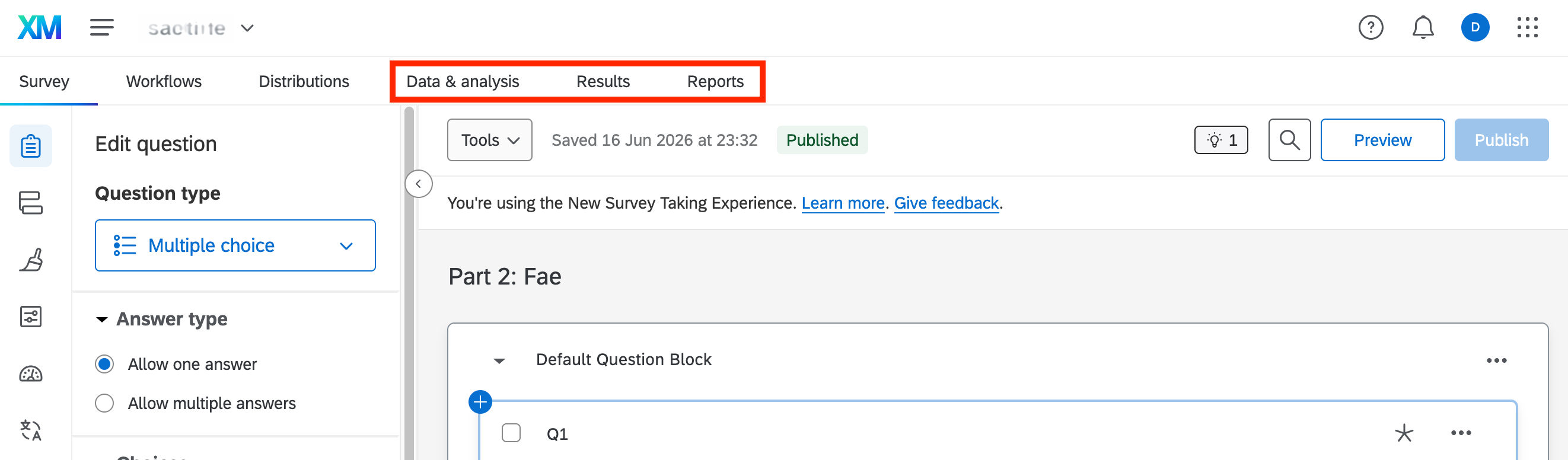
The Data & analysis, Results and Reports tabs in a Qualtrics survey provide advanced analytics and reporting capability, including text analysis, visualisations and custom reports.
Rating on learning analytics
Advanced: Sophisticated analytics with actionable intelligence and AI-driven insights and full customisation.
Qualtrics
Cogniti
How to access
Currently for pilot use only.
Log into Cogniti.Learning analytics available
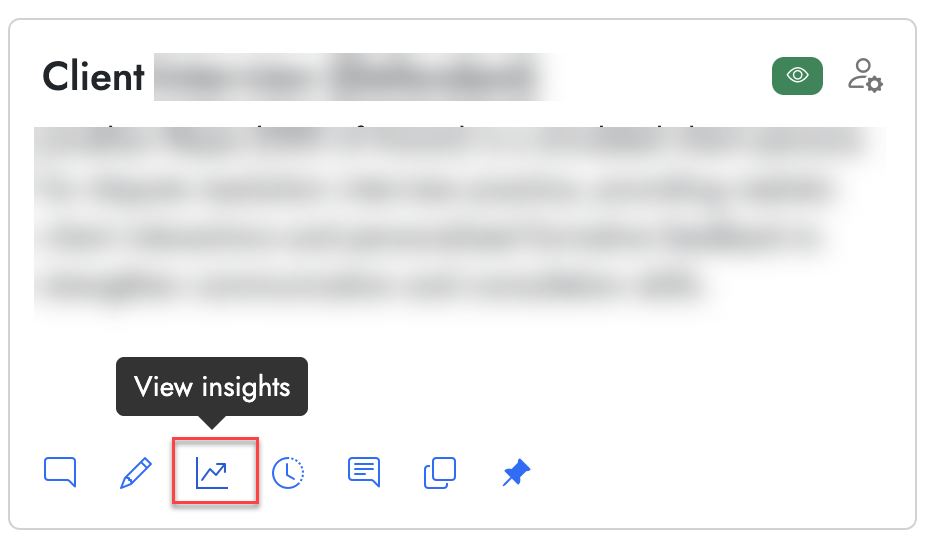
View insights: Captures, Overview & Token usage
- Number of conversations: Total chat sessions with the agent, including repeat interactions by the same user, indicating overall usage volume.
- Number of unique users: Total distinct individuals who used the agent, counted once each, indicating overall reach and adoption.
- Average time per conversation.
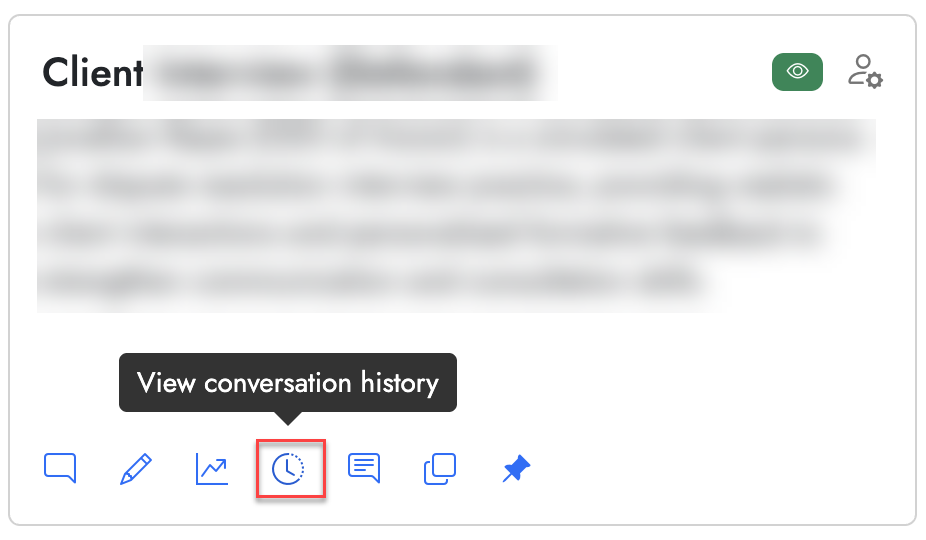
View Conversation History
Student's conversations can be viewed and downloaded in Word or CSV/Excel format.
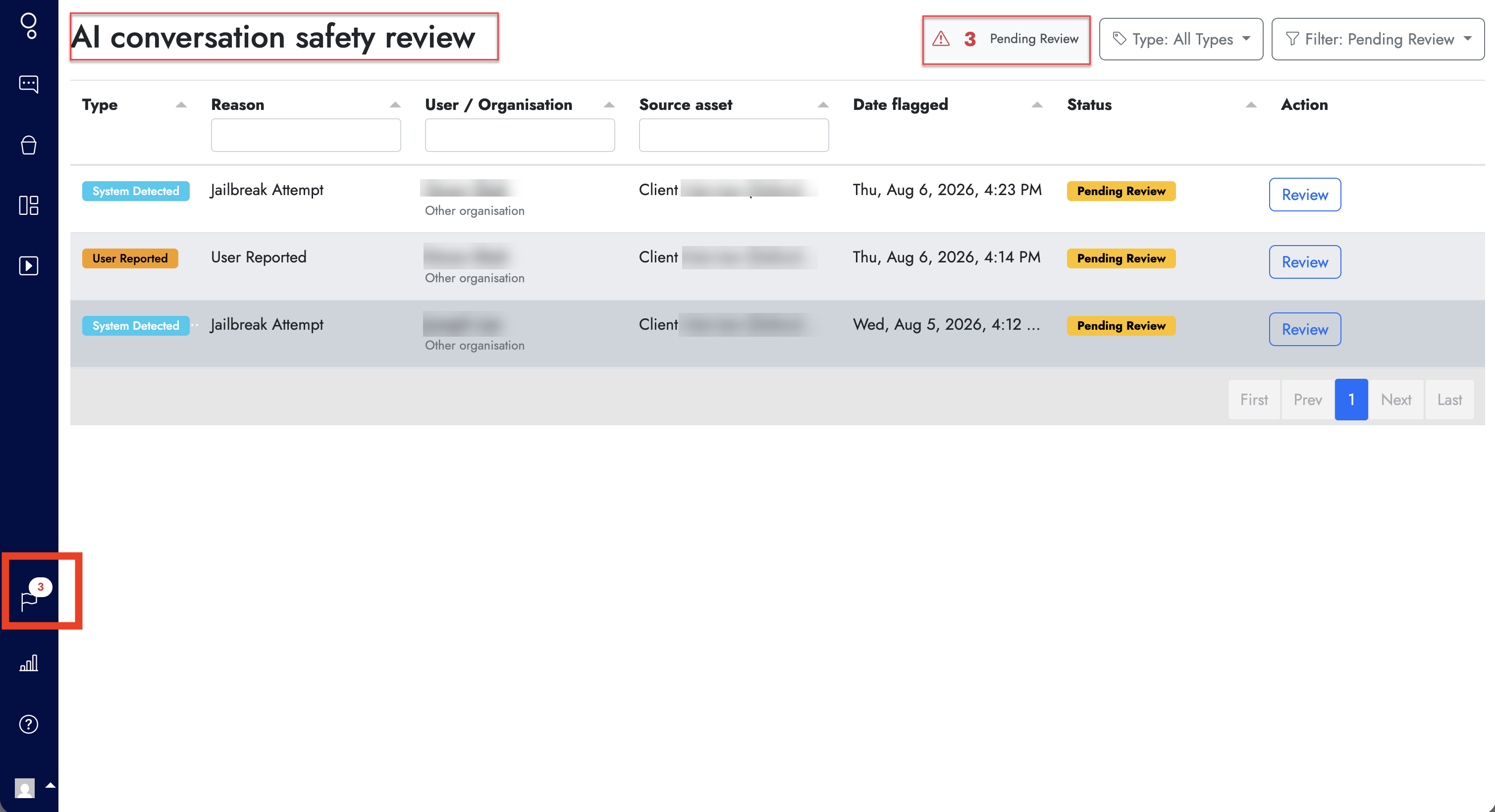
AI Conversation Safe review
This captures jailbreaking attempts made by students, highlighting interactions where they attempted to bypass, manipulate, or break the agent's intended behaviour.
Rating on learning analytics
Foundational: Essential learning analytics with standard reporting.
Cogniti: Insights
Cogniti: Conversation History
Cogniti: AI Conversation Safe review
Student engagement with live polling
Zoom Polls
How to access
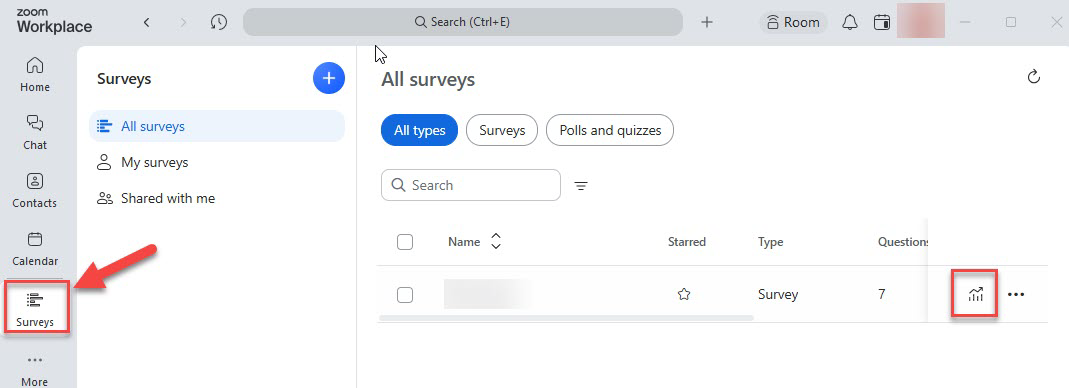
- The Zoom app (pre-installed on University of Melbourne computers).
- SSO login at the Zoom website.
Learning analytics available
- Count on response
- Typical time spent
- Completion %
- Question summary with results per question.
Rating on learning analytics
Foundational: Essential learning analytics with standard reporting.
Zoom polls or surveys
Learning analytics available
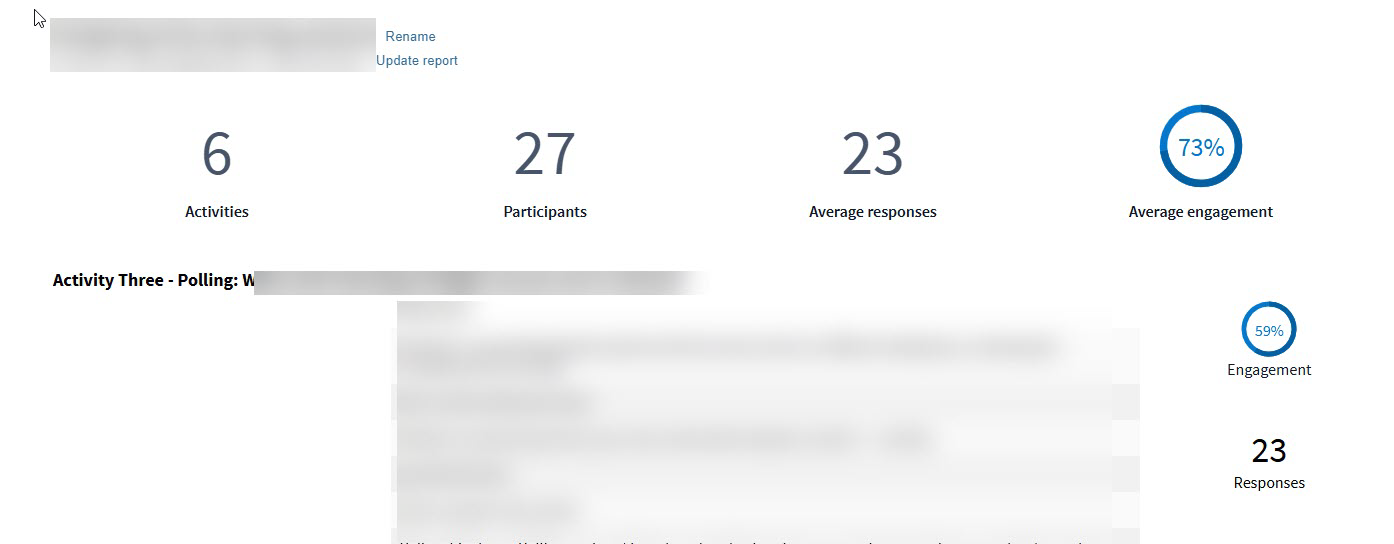
- Users can select different options to create or view a report for a Poll Activities or folders.
- Reporting varies depending on report type selected, but typically include overall statistics and responses for each activity pulled into the report.
- All reports are stored in Reports, unless deleted.
Rating on learning analytics
Foundational: Essential learning analytics with standard reporting.
Poll Everywhere Report
EchoVideo: Polls
How to access
To access your Canvas subject's Lecture Capture (EchoVideo) page:
- In the Canvas subject navigation menu, click the Lecture Capture link.
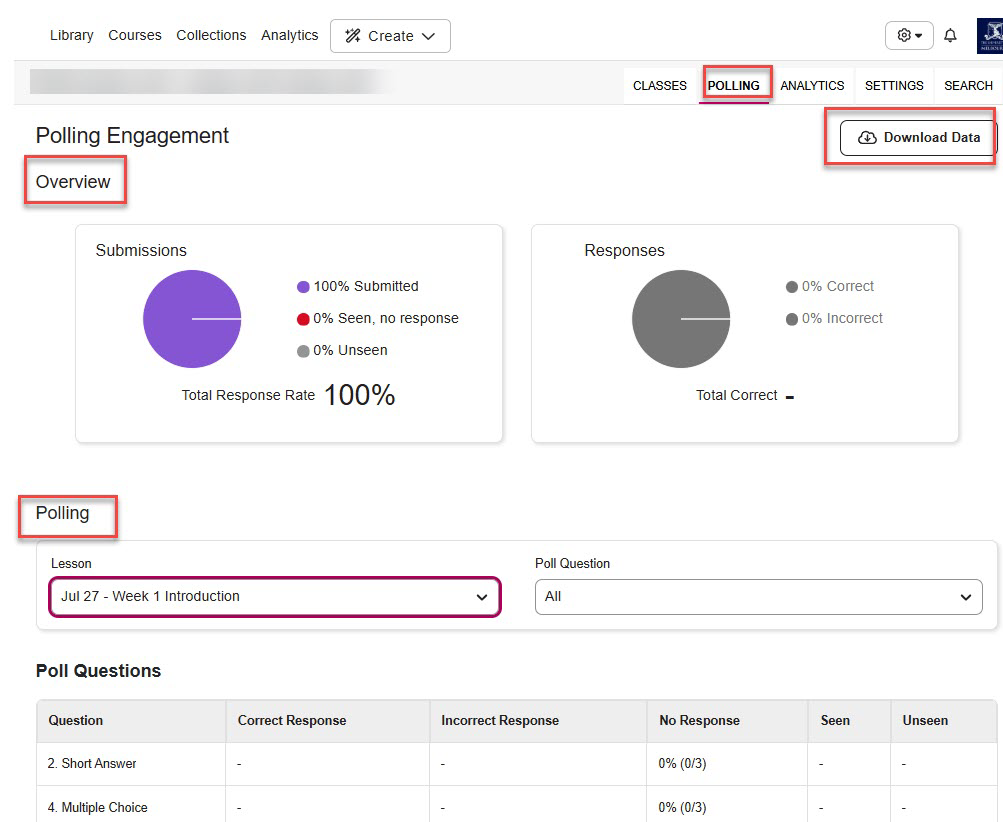
- Select the Polling tab.
Learning analytics available
Provides analytics for EchoVideo polls embedded in media or a presentation:
- Overall submission and response stats are provided.
- Then stats per poll within the media or presentation.
Rating on learning analytics
Foundational: Essential learning analytics with standard reporting.
EchoVideo Poll analytics
Assessment insights
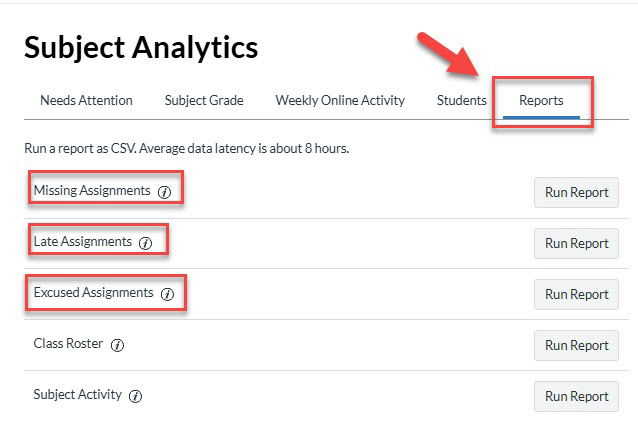
Canvas: Reports
How to access
View and download from your Canvas subject's Subject Analytics page.
To access your Canvas subject's Subject Analytics page:
- Go to the Home page.
- Click the Subject Analytics button.
- Select the Reports tab.
Learning analytics available
- Missing Assignments report
- Late Assignments report
- Excused Assignments report
Rating on learning analytics
Foundational: Essential learning analytics with standard reporting.
Canvas assessment reports
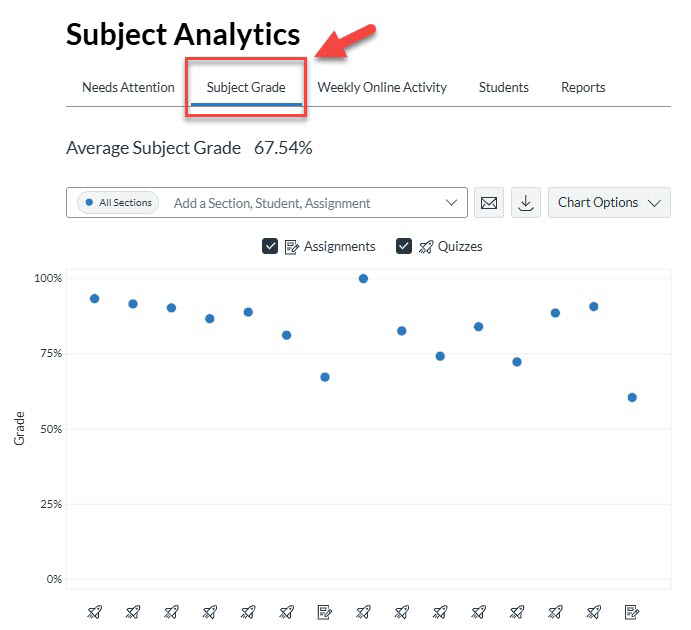
Canvas: Subject grades
How to access
View and download from your Canvas subject's Subject Analytics page.
To access your Canvas subject's Subject Analytics page:
- Go to the Home page.
- Click the Subject Analytics button.
- Select the Subject Grades tab.
Learning analytics available
- Graph with average grade per assignment or quiz
- Summary view or filter on section or individual student
Rating on learning analytics
Detailed: Comprehensive analytics with advanced reporting and visualisations, some insights.
Canvas subject grades
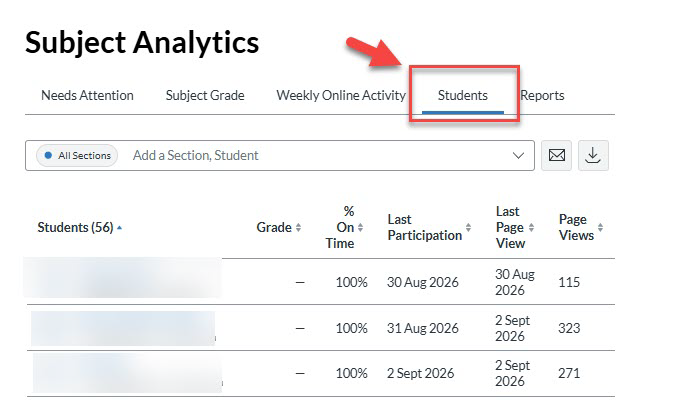
Canvas: Students
How to access
View and download from your Canvas subject's Subject Analytics page.
To access your Canvas subject's Subject Analytics page:
- Go to the Home page.
- Click the Subject Analytics button.
- Select the Students tab.
Learning analytics available
Table with:
- Student list
- Overall grade
- % on time
- Last participation date
- Last page view date
- Number page views
- Number of participations.
Summary view or filter on section or individual student.
Rating on learning analytics
Detailed: Comprehensive analytics with advanced reporting and visualisations, some insights.
Canvas student grades
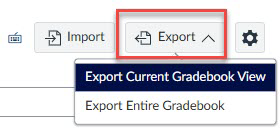
Canvas: Grades report
How to access
In your Canvas Subject:
- Click the Grades link in the subject navigation menu.
- Click the Export button, top right.
Learning analytics available
- Export current Gradebook view (downloadable)
- Export entire Gradebook
Rating on learning analytics
Foundational: Essential learning analytics with standard reporting.
Canvas: Export grades
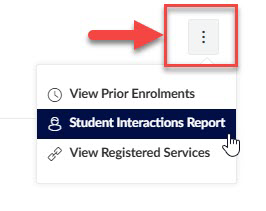
Canvas: Student interaction report
How to access
In your Canvas Subject:
- Click the People link in the subject navigation menu.
- Click the 3 dot icon in the top right.
- Select Student Interactions Report.
Learning analytics available
Table with:
- List of the students in your course
- The last time you interacted with students
- The current grade for a student
- The final grade for a student
- If there are any submitted but ungraded assignments for the student.
Rating on learning analytics
Foundational: Essential learning analytics with standard reporting.
Canvas: Student interaction report
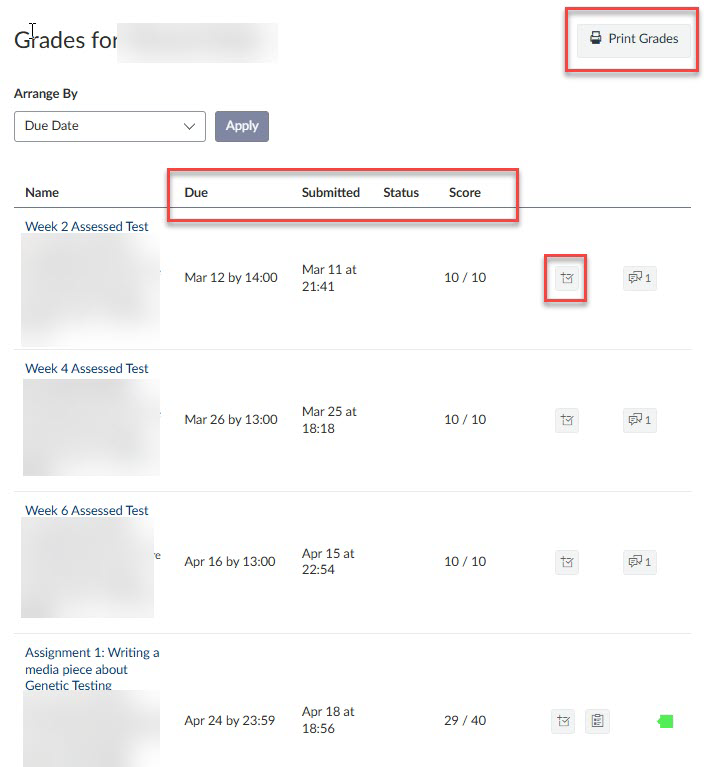
Canvas: Individual student grades
How to access
In your Canvas Subject:
- Click the People link in the subject navigation menu.
- Click on a students name.
- Click the Grades button on right.
- Use the Print Grades button to print the contents of the grades table.
Learning analytics available
Table focused on the student with:
- List of assignments in the subject
- Dues dates each assignment
- Date student submitted
- Status
- Score
- Score details - mean/median/high/upper quartile/low lower quartile
- Page is printable to PDF.
Rating on learning analytics
Foundational: Essential learning analytics with standard reporting.
Canvas: Individual student grades
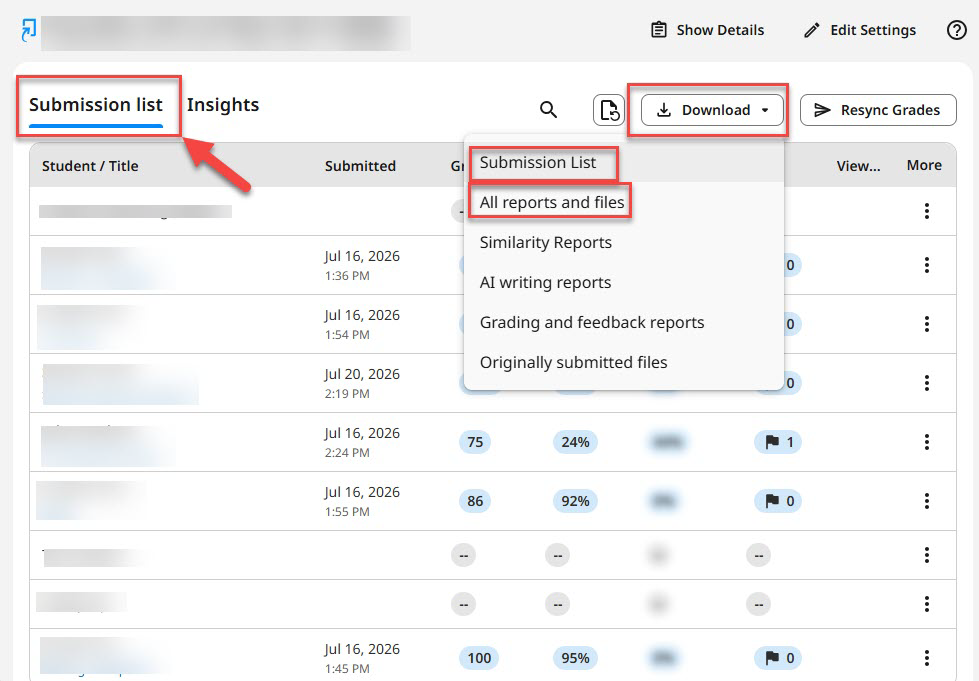
Turnitin LTI 1.3 assignments: Submission List
How to access
In your Canvas Subject:
- Click the Assignments link in the subject navigation menu.
- On the Assignments page, select a Turnitin LTI 1.3 assignment.
- Ensure the Submission List tab is selected.
- Click the Download button and select from the drop-down menu.
Learning analytics available
The submission list provides an overall of status of all students submission. Including:
- Date and time of submission
- Grade
- Similarity score
- Flags If student has viewed the submission feedback.
There is also a download button that lets staff download:
- Submission list (Grades and rubric marking as per insights tab)
- All reports and files (all reports for each student)
- Similarity reports (a report for each student)
- AI writing reports (a report for each student)
- Grading and Feedback reports (a report for each student)
- Originally submitted files (a report for each student).
Rating on learning analytics
Foundational: Essential learning analytics with standard reporting.
Turnitin FeedbackStudio: Submission List
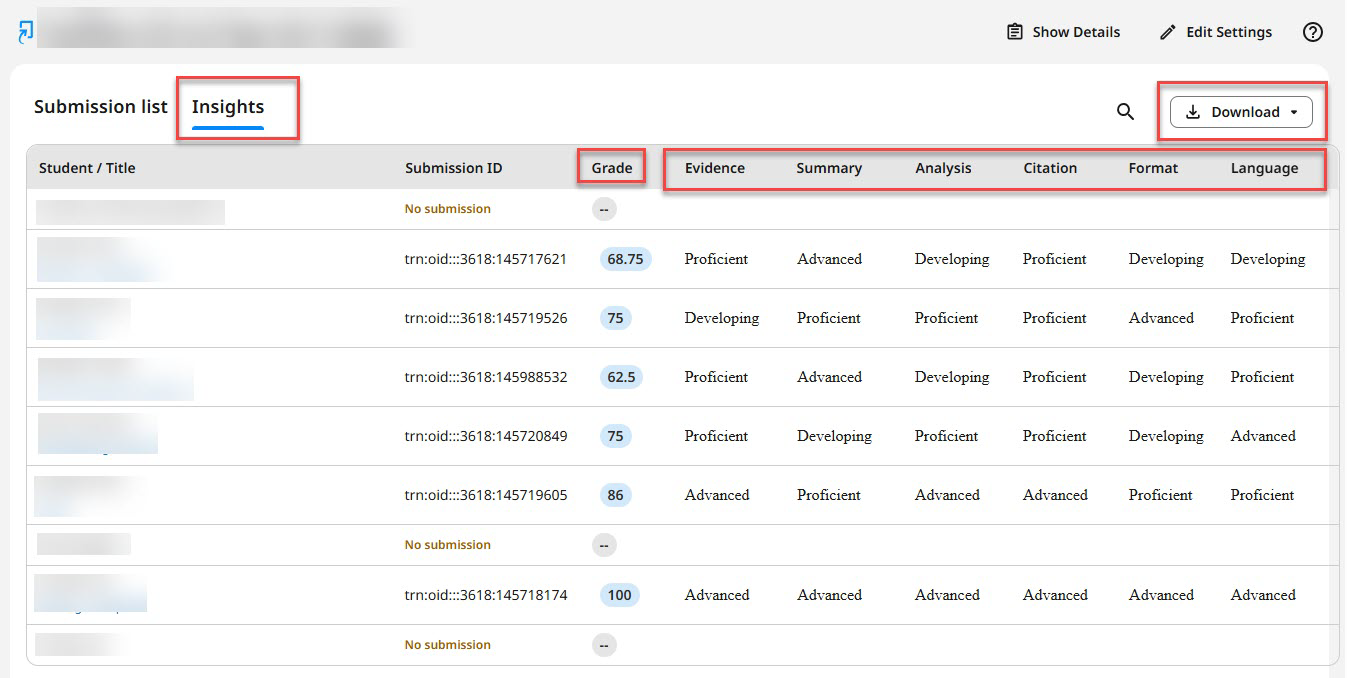
Turnitin LTI 1.3: Insights
How to access
In your Canvas Subject:
- Click the Assignments link in the subject navigation menu.
- On the Assignments page, select a Turning LTI 1.3 assignment.
- Click on the Insights tab.
- Review table.
Learning analytics available
The Insights tab lists:
- All students
- Their grade
- How they have been marked against each criteria in the rubric
- Download button with same Submission List as listed above.
Rating on learning analytics
Foundational: Essential learning analytics with standard reporting.
Turnitin FeedbackStudio: Insights
Cadmus: Marking
How to access
In your Canvas Subject:
- Click the Assignments link in the subject navigation menu.
- On the Assignments page, select a Cadmus assignment.
- If required, click the Go to Cadmus button.
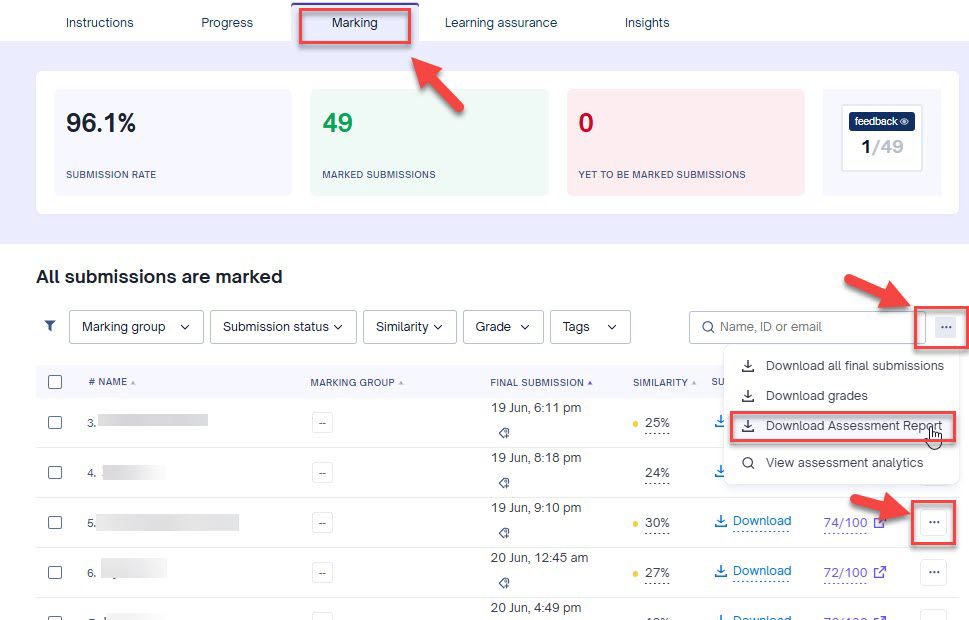
- Select the Marking tab.
Learning analytics available
- Download Cadmus Assessment report - downloadable report emailed to you with detailed assessment statistics (note this report is similar to the raw data Cadmus Learning Assurance report, but the latter has more AI details)
- Click on the 3 dot icon next to an individual student
- View activity report to view stats on the student submission. Activity reports are a detailed report on each student including:
- First access
- Final submission
- Time spent
- Cut and paste ratios
- Resources accessed
- Session details.
Rating on learning analytics
Detailed: Comprehensive analytics with advanced reporting and visualisations, some insights.
Cadmus: Marking
Cadmus: Insights
How to access
In your Canvas Subject:
- Click the Assignments link in the subject navigation menu.
- On the Assignments page, select a Cadmus assignment.
- If required, click the Go to Cadmus button.
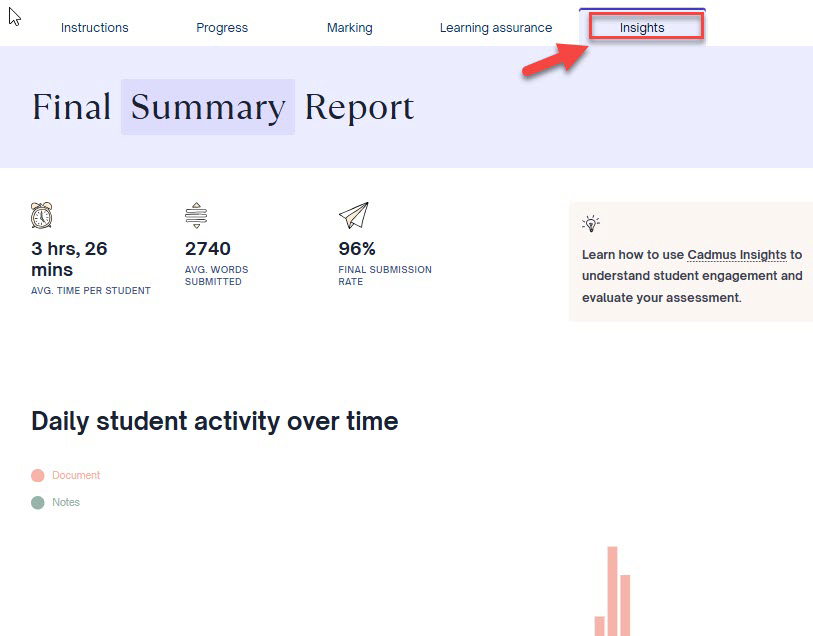
- Select the Insights tab.
Learning analytics available
- Cohort level statistics
- Progress view - available up until the feedback return date - includes:
- The number of students working
- Resources accessed
- Average word counts.
- Final Summary Report -available after the feedback return date. Includes:
- When students complete work
- Average time spent on the task
- Resources accessed
- Student experience ratings.
Rating on learning analytics
Detailed: Comprehensive analytics with advanced reporting and visualisations, some insights.
Cadmus: Insights
Gradescope: Review Grades
How to access
In your Canvas Subject:
- Click the Assignments link in the subject navigation menu.
- On the Assignments page, select a Gradescope assignment.
- If required, click Load [assignment name] in a new window button.
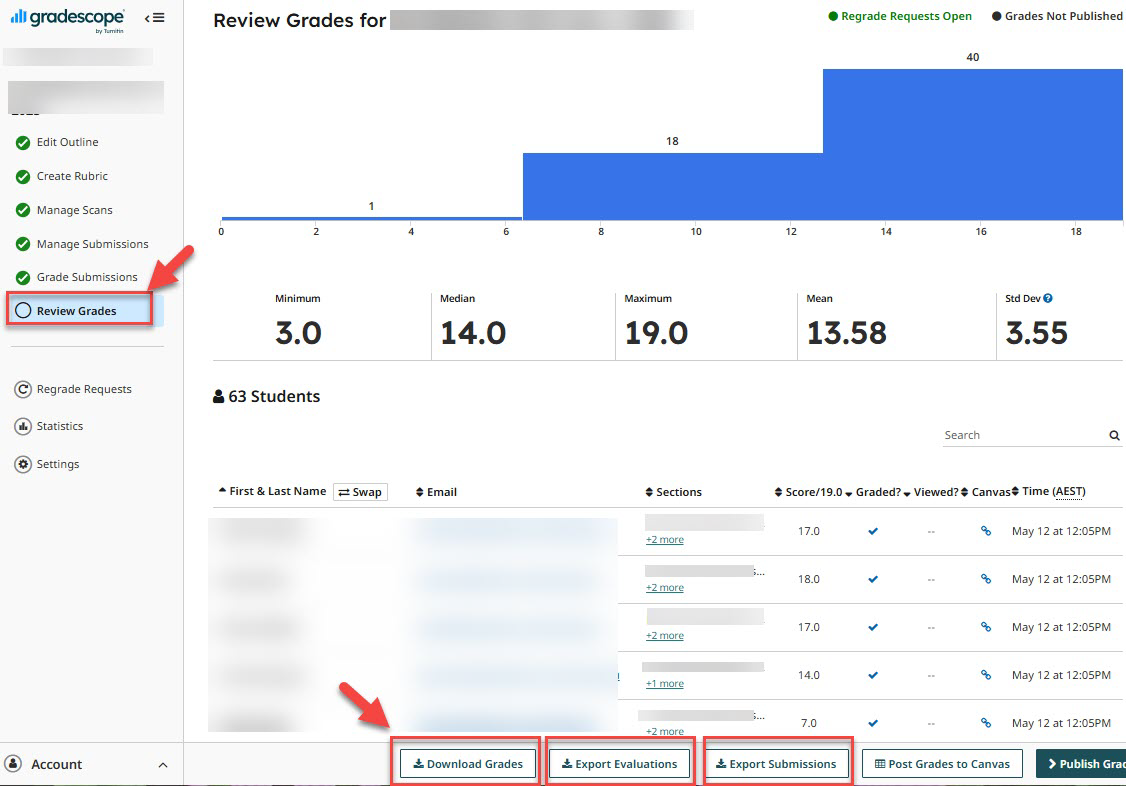
- Select the Review Grades tab.
OR
- Click the Gradescope link in the subject navigation menu.<
- Click on the assignment name.<
- Select the Review Grades tab.<
Learning analytics available
In Review Grades you can:
- View assignment data (graph with min, median, max, mean, std dev as a mark)
- Download assignment grades
- Export Evaluations (with rubric marking)
- Export assignment submissions (with grades)
No matter which Gradescope assignment type your create, the analytics available are the same.
Rating on learning analytics
Detailed: Comprehensive analytics with advanced reporting and visualisations, some insights.
Gradescope: Assignment analytics
Gradescope: Statistics
How to access
In your Canvas Subject:
- Click the Assignments link in the subject navigation menu.
- On the Assignments page, select a Gradescope assignment.
- If required, click Load [assignment name] in a new window button.
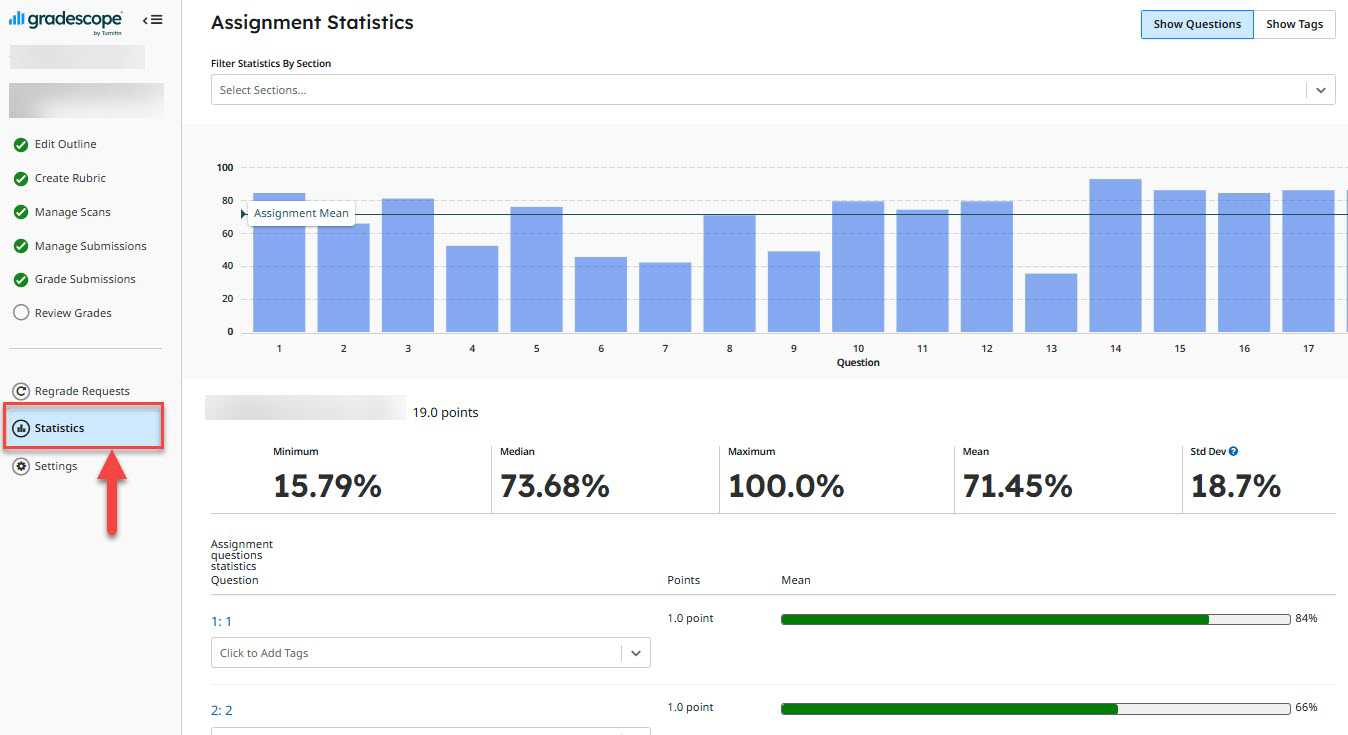
- Select the Statistics tab.
OR
- Click the Gradescope link in the subject navigation menu.<
- Click on the assignment name.
- Select the Statistics tab.
Learning analytics available
In Statistics you can:
- See graph with mean score as a % for each question
- See table with: min, median, max, mean, std dev. as a % score.
- See mean student % for each question
- Add tags to questions to view statistics by topic/learning outcome etc.
- Click on question name to review stats broken down by the rubric marking for that question.
No matter which Gradescope assignment type your create, the analytics available are the same.
Rating on learning analytics
Detailed: Comprehensive analytics with advanced reporting and visualisations, some insights.
Gradescope: Assignment analytics
FeedbackFruits: Assignment analytics
How to access
In your Canvas Subject:
- Click the Assignments link in the subject navigation menu.
- On the Assignments page, select a FeedbackFruits assignment.
- If required, click Load [assignment name] in a new window button.
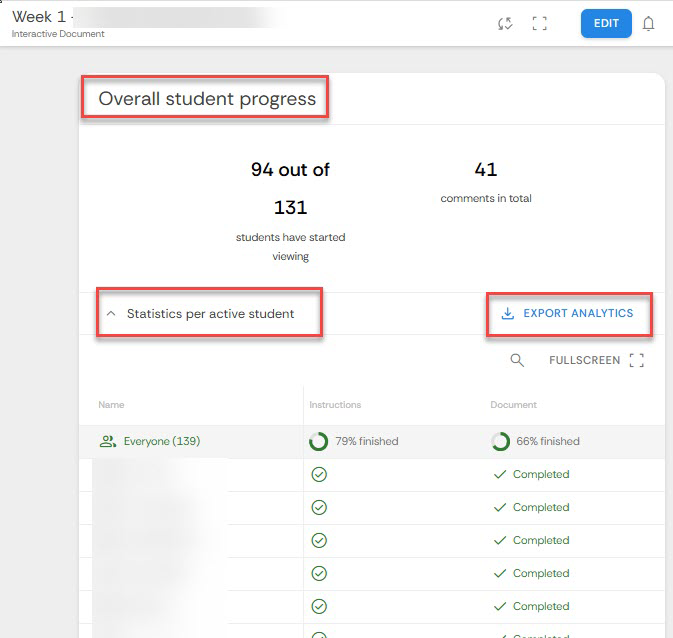
- Review the Activity Progress panel.
- Click Export Analytics button.
Learning analytics available
Once students start engaging with your FeedbackFruits Assignment, the Overall Student Progress panel will populate. It includes:
- Number of student viewing or completed the assignment
- Depending on the type of assignment - engagement counts per activity type
- Average time spent completing the assignment
- Table with progress statistics per student
- Ability to download student analytics.
Rating on learning analytics
Foundational: Essential learning analytics with standard reporting.
FeedbackFruits: Assignment analytics
Stackle
How to access
In your Canvas Subject:
- Click the Assignments link in the subject navigation menu.
- On the Assignments page, select a Stackle assignment.
- If required, click Load [assignment name] in a new window button.
OR
- Find the Stackle activity on the Canvas page with the activity embedded in it.
THEN
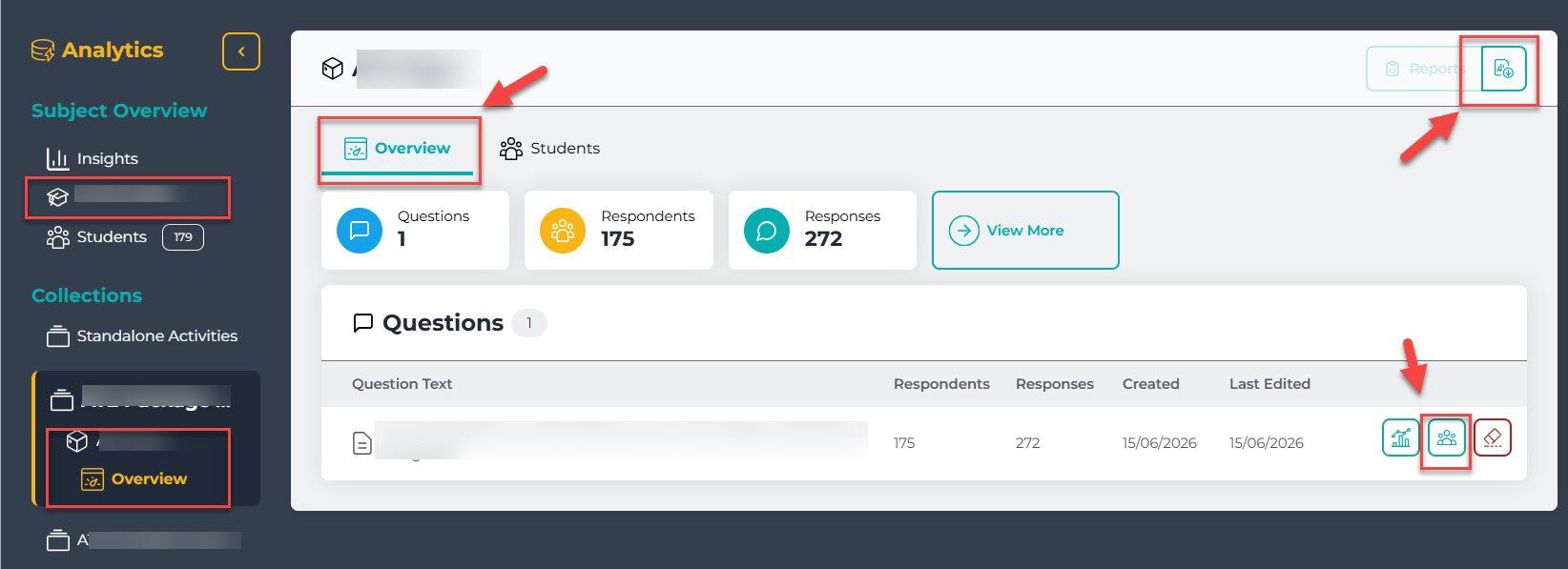
- Click 3 dots top right of the activity panel.
- Click View Activity Analytics.
Learning analytics available
Activity analytics include:
- Overview tab with:
- Number of respondents
- Number of responses
- Students tab with all student responses to the activity, in a table
- Ability to create a report for the current view you are reviewing.
Left-hand navigation includes subject Stackle insights for all activities in the subject:
- Overview of Stackle engagement stats
- Table with summary and engagement all Stackle activities in your subject.
NOTE: Analytics under View more are still under development.
Rating on learning analytics
Foundational: Essential learning analytics with standard reporting.
Stackle: Activity analytics
Perusall
How to access
In your Canvas Subject:
- Click the Perusall 1.3 link in the subject navigation menu.
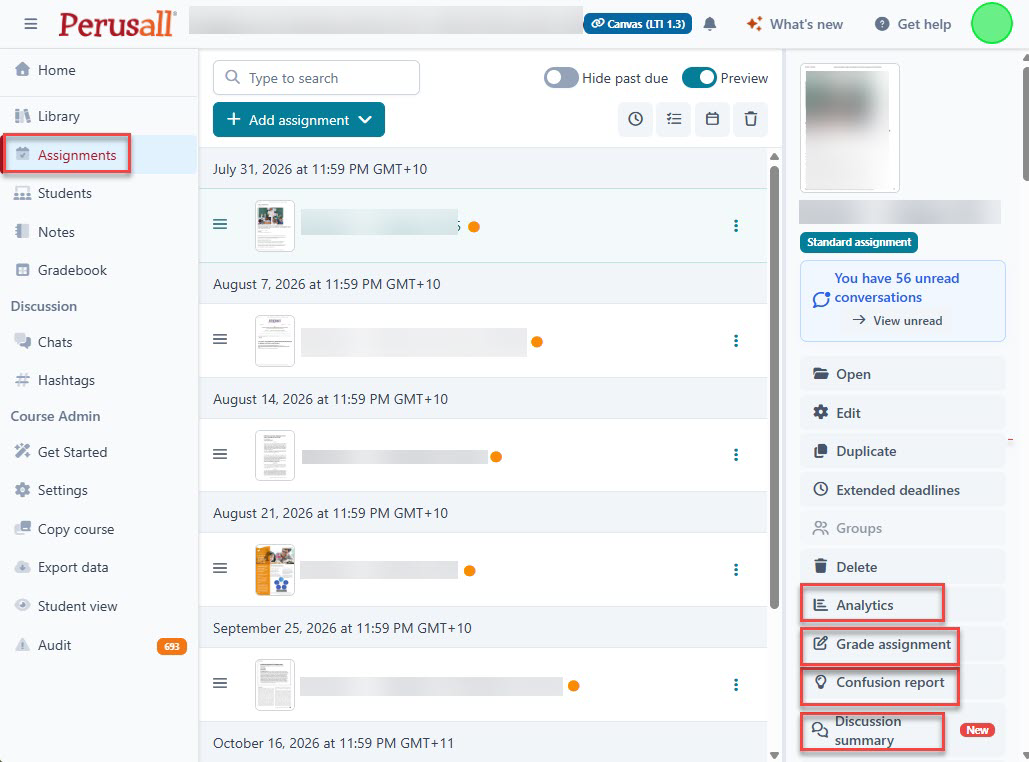
- In the new tab, ensure you are on Assignments in the left-hand navigation.
- Click on an assignment.
- In the right-hand panel there are buttons for multiple analytics options:
- Analytics button
- Confusion report
- Discussion summary
- Grade assignment
OR
- Click the Assignments link in the subject navigation menu.
- On the Assignments page, select a Perusall assignment.
- If required, click Load [assignment name] in a new window button.
Learning analytics available
Multiple analytics available including:
- Analytics button
- Student activity report
- Grade distribution report
- Comment submission time heat map
- Page view report
- Student progress report
- Grade assignment button
- Grade engagement metrics
- Confusion report button
- Discussion summary report button
Rating on learning analytics
Advanced: Sophisticated analytics with actionable intelligence and AI-driven insights and full customisation.
Perusall: Assignment analytics
Matlab Grader LTI 1.3
How to access
In your Canvas Subject:
- Click the Assignments link in the subject navigation menu.
- On the Assignments page, select a Matlab Grader LTI 1.3 assignment.
- If required, click Load [assignment name] in a new window button.
- Ensure the assignment is open.
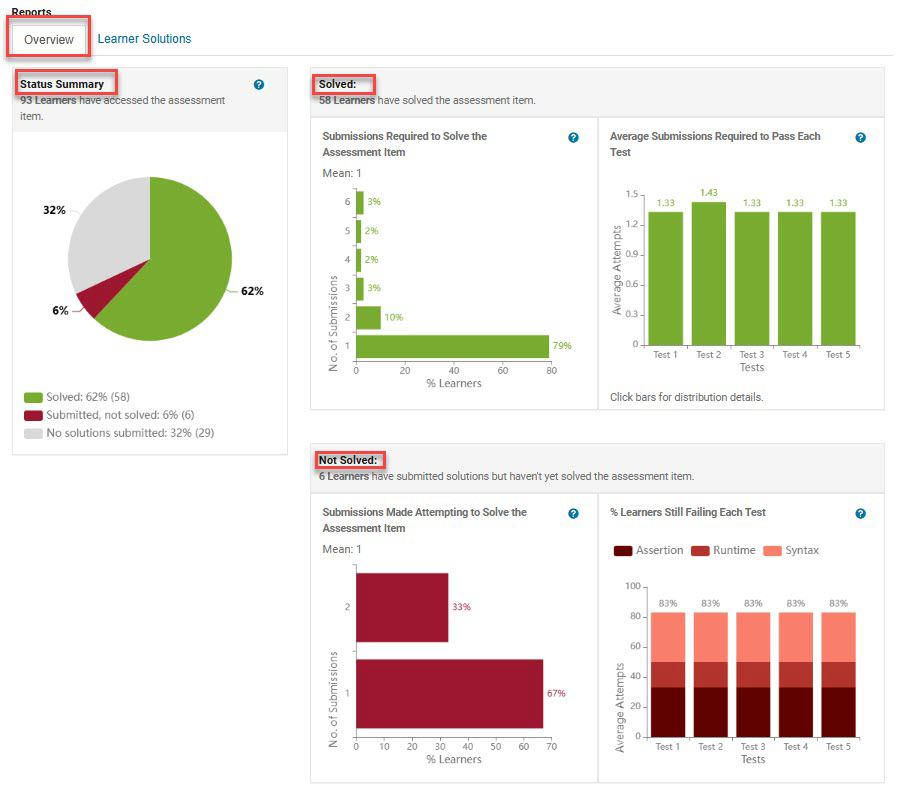
- Click Reports top right.
- Review reports on the Overview tab and Learner Solution tab.
Learning analytics available
Overview tab in Reports includes:
- Status summary of student engagement
- Analysis of students solved it correctly
- Analysis of students not solved it
Learner solution tab in Reports displays list students with their results and number of attempts. Report can be downloaded.
Rating on learning analytics
Foundational: Essential learning analytics with standard reporting.
Matlab Grader: Overview
PebblePad
How to access
In your Canvas Subject:
- Click the Assignments link in the subject navigation menu.
- On the Assignments page, select a PebblePad assignment.
- If required, click Load [assignment name] in a new window button.
- Click the blue icon in the top bar to go to ATLAS.
OR
- Click the PebblePad link in the subject navigation menu.
- Click the blue icon in the top bar to go to ATLAS.
Learning analytics available
PebblePad includes reporting via ATLAS. ATLAS is connected on a per subject basis. Student work will need to be submitted to ATLAS (either manually by the student or automatically via ‘auto-share’ options on the ATLAS assignment). Most reportable fields will also require the use of PebblePad worksheets or workbooks. Refer to the Notifications and reports page within the PebblePad Help Hub.
- Submissions and progress: Monitor and view submissions, track progress and completion metrics, run reports of submission of the same workbook across subjects (cross-workspace reports), run CSV reports to ascertain student engagement across subjects/ATLAS workspaces.
- ATLAS Reports: If using PebblePad workbooks, run cohort reports to compare student and supervisor responses to rubrics, checklists, digital signatures, and other fields.
- Capability Insights: Run reports of student evidence toward meeting professional standards (requires use of Capability fields in workbooks).
The Teaching and Learning Innovation team can also pull additional Administration statistics and reports of users, PebblePad format types and ATLAS workspaces within and across faculties.
Rating on learning analytics
Detailed: Comprehensive analytics with advanced reporting and visualisations, some insights.
PebblePad: ATLAS reports
GoReact: Overall assignment analytics
How to access
Currently for pilot use only.
In your Canvas Subject:
- Click the Assignments link in the subject navigation menu.
- On the Assignments page, select a GoReact assignment.
- If required, click Load [assignment name] in a new window button.
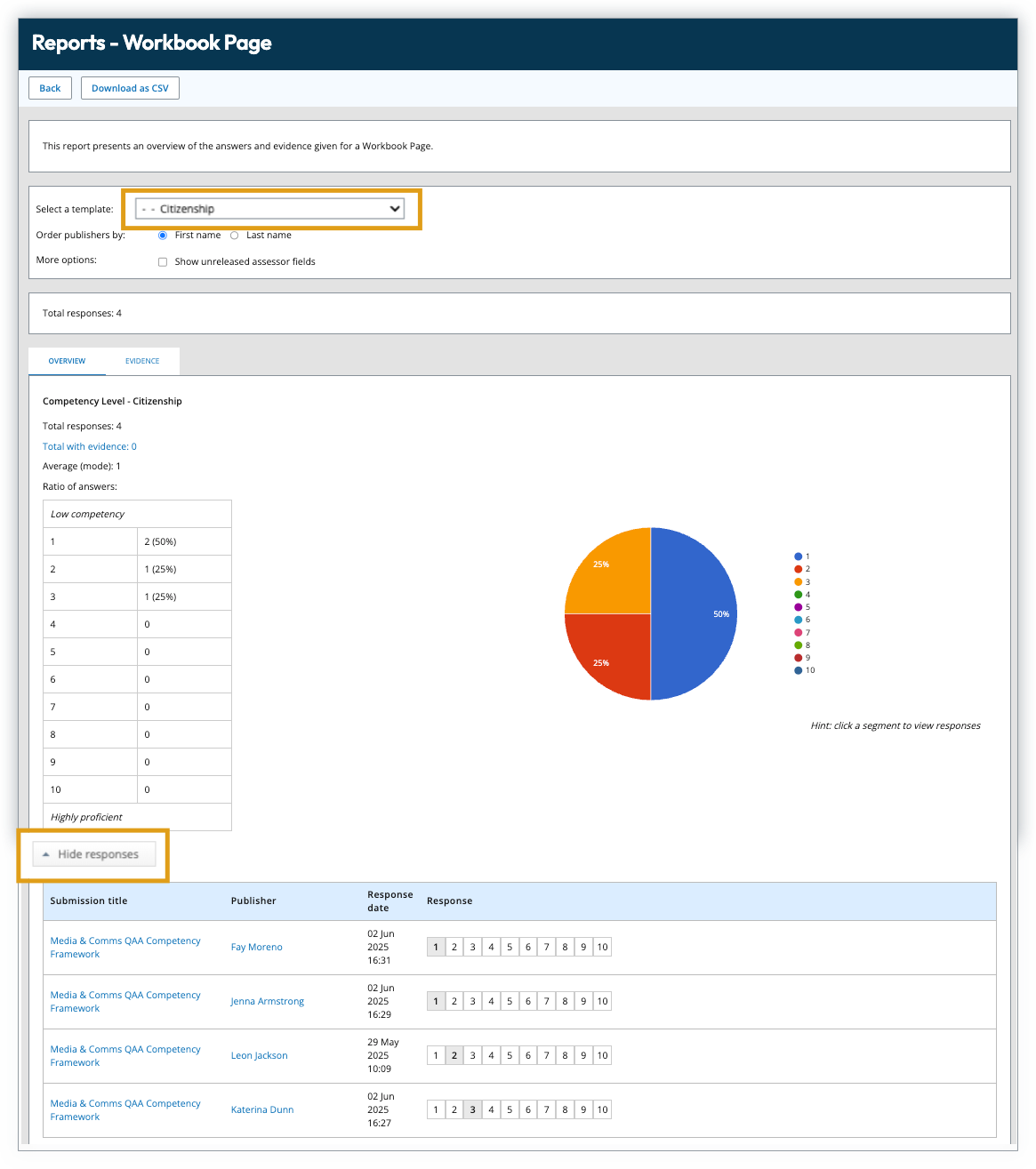
- In the Instructor Overview pane, select Task Report or Activity Report.
Learning analytics available
When viewing a GoReact assignment, 2 reports are available:
- Task report: Provides a task-level view of learner progress by listing students and whether they achieved different tasks available in a GoReact assignment, being:
- Create video
- Self reflect
- Learn from feedback
- Activity report: Summarises each learner's overall participation and completion by listing students and activity in the assignment:
- Videos presented
- Videos critiqued
- Comments written
- Average comment length
- Score
The Activity report can be downloaded by clicking the 3 dots next to the Assignment name in the header, and selecting View Activity Report.
Rating on learning analytics
Foundational: Essential learning analytics with standard reporting.
GoReact: Activity report
GoReact: Student video submission analytics
How to access
Currently for pilot use only.
In your Canvas Subject:
- Click the Assignments link in the subject navigation menu.
- On the Assignments page, select a GoReact assignment.
- If required, click Load [assignment name] in a new window button.
- In the Instructor Overview pane, select Submissions.
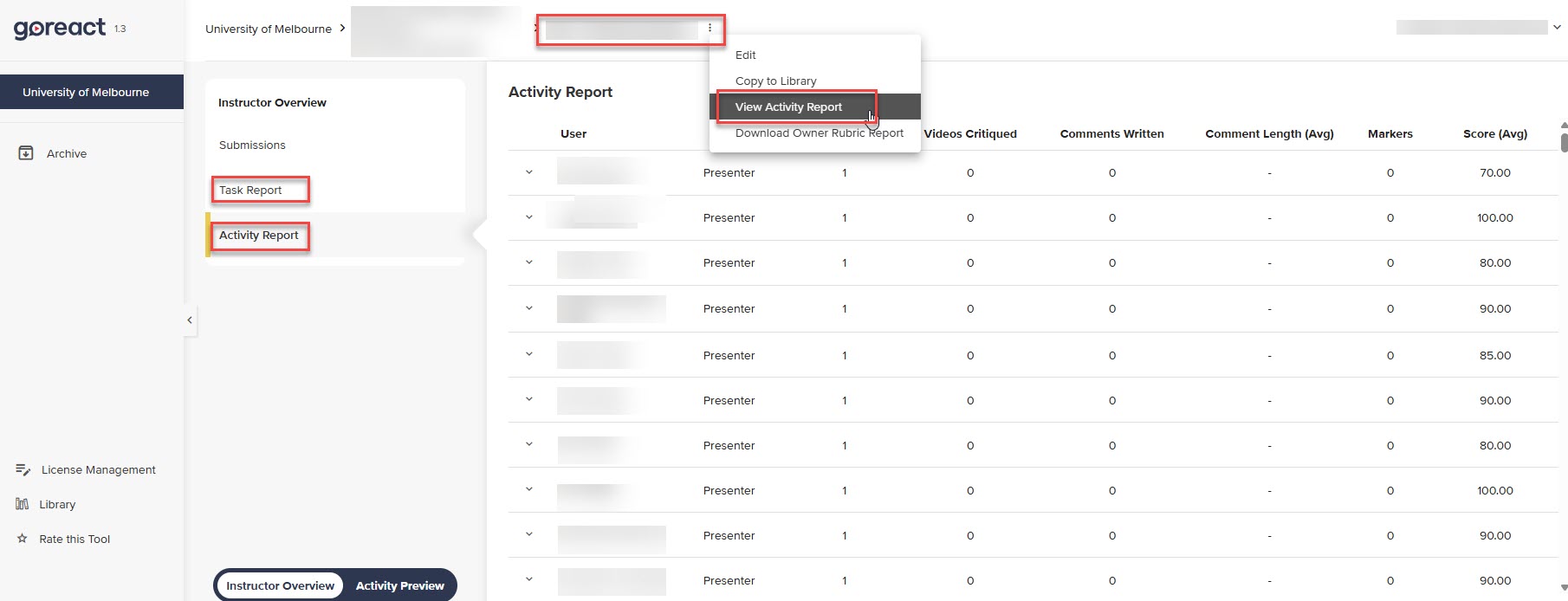
- Review a student's submission and click Analytics.
Learning analytics available
Provides analytics and AI-generated metrics on each speaker in a student’s video including:
- Feedback occurring over time
- Filler words (total & percentage)
- Pauses (total & lengthy)
- Pace (wpm, change in pace)
- Hedging words (total & percentage)
- Feedback graph (markers & comments)
Rating on learning analytics
Advanced: Sophisticated analytics with actionable intelligence and AI-driven insights and full customisation.
GoReact: Student video submission analytics
Quiz insights
Canvas: Quiz Summary
How to access
In your Canvas Subject:
- Click the Quizzes link in the subject navigation menu.
- On the Quizzes page, select a Quiz.
- Click Quiz Statistics in the top right.
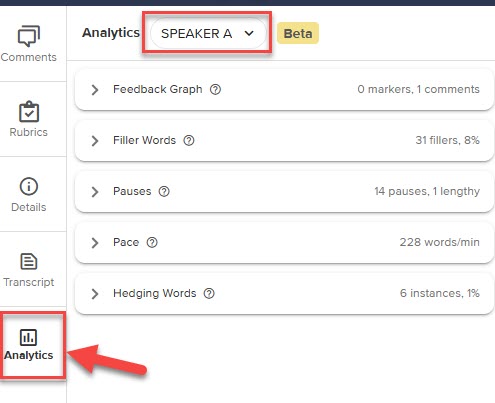
- Review the Quiz Summary page.
Learning analytics available
Quiz Summary: Displays a table with:
- Average score
- High score
- Low score
- Standard deviation
- Average time
Displays a graph showing overall quiz score percentages against the number of students who received each percentage.
Question Breakdown — each question is analysed with:
- Attempt numbers
- Question
- Graph with number of responses and percentages for each answer option
- Discrimination index
- Overall % correct number
Has the ability to filter on section.
Rating on learning analytics
Detailed: Comprehensive analytics with advanced reporting and visualisations, some insights.
Canvas: Quiz Summary
Canvas: Quiz Statistics
How to access
In your Canvas Subject:
- Click the Quizzes link in the subject navigation menu.
- On the Quizzes page, select a Quiz.
- Click Quiz Statistics in the top right.
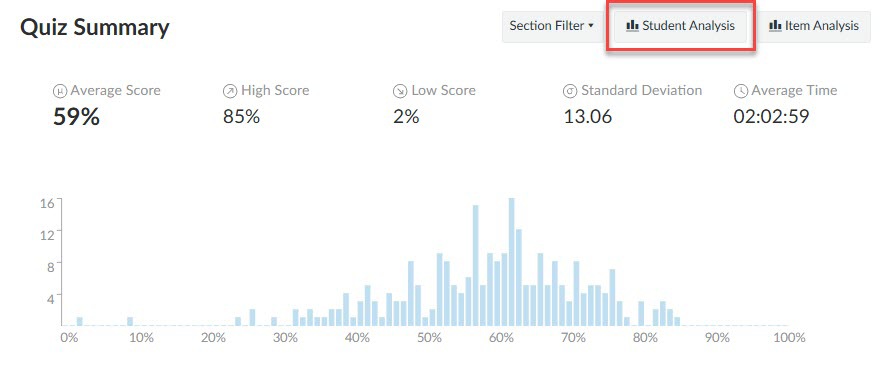
- Click the Student Analysis button at the top of the Quiz Summary page.
Learning analytics available
Click on the button to download a report with each student listed with:
- Submitted at time (in UTC time)
- Attempt number
- Their answer for each question
- Their mark for each question
- Number incorrect
- Number correct
- Score
Rating on learning analytics
Detailed: Comprehensive analytics with advanced reporting and visualisations, some insights.
Canvas: Student Analysis
Canvas: Quizzes - Item analysis
How to access
In your Canvas Subject:
- Click the Quizzes link in the subject navigation menu.
- On the Quizzes page, select a Quiz.
- Click Quiz Statistics in the top right.
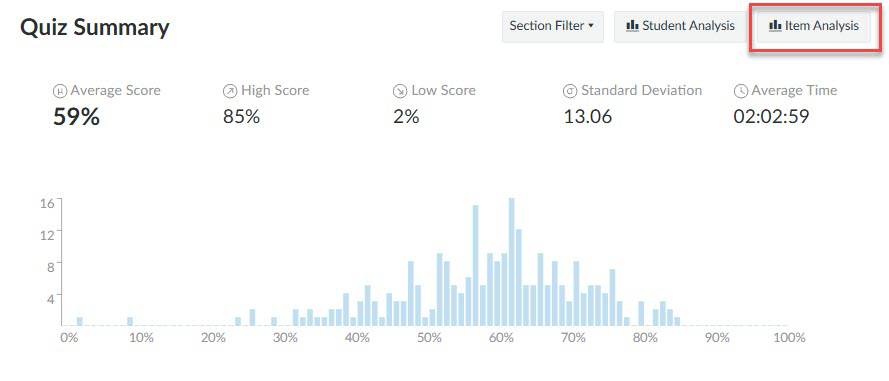
- Click the Item Analysis button at the top of the Quiz Summary page.
Learning analytics available
Click on the button to download a report.
Downloadable report which analyses ‘multiple choice’ and ‘true/false’ questions in the quiz with:
- Question Title
- Answered Student Count
- Top Student Count
- Middle Student Count
- Bottom Student Count
- Quiz Question Count
- Correct Student Count
- Wrong Student Count
- Correct Student Ratio
- Wrong Student Ratio
- Correct Top Student Count
- Correct Middle Student Count
- Correct Bottom Student Count
- Variance
- Standard Deviation
- Difficulty Index
- Alpha
- Point Biserial of Correct
- Point Biserial of Distractor 2
- Point Biserial of Distractor 3
- Point Biserial of Distractor 4
Rating on learning analytics
Detailed: Comprehensive analytics with advanced reporting and visualisations, some insights.
Canvas: Item analysis
Cadmus: Multi-Format Assessments
How to access
In your Canvas Subject:
- Click the Assignments link in the subject navigation menu.
- On the Assignments page, select a Cadmus assignment.
- If required, click the Go to Cadmus button.
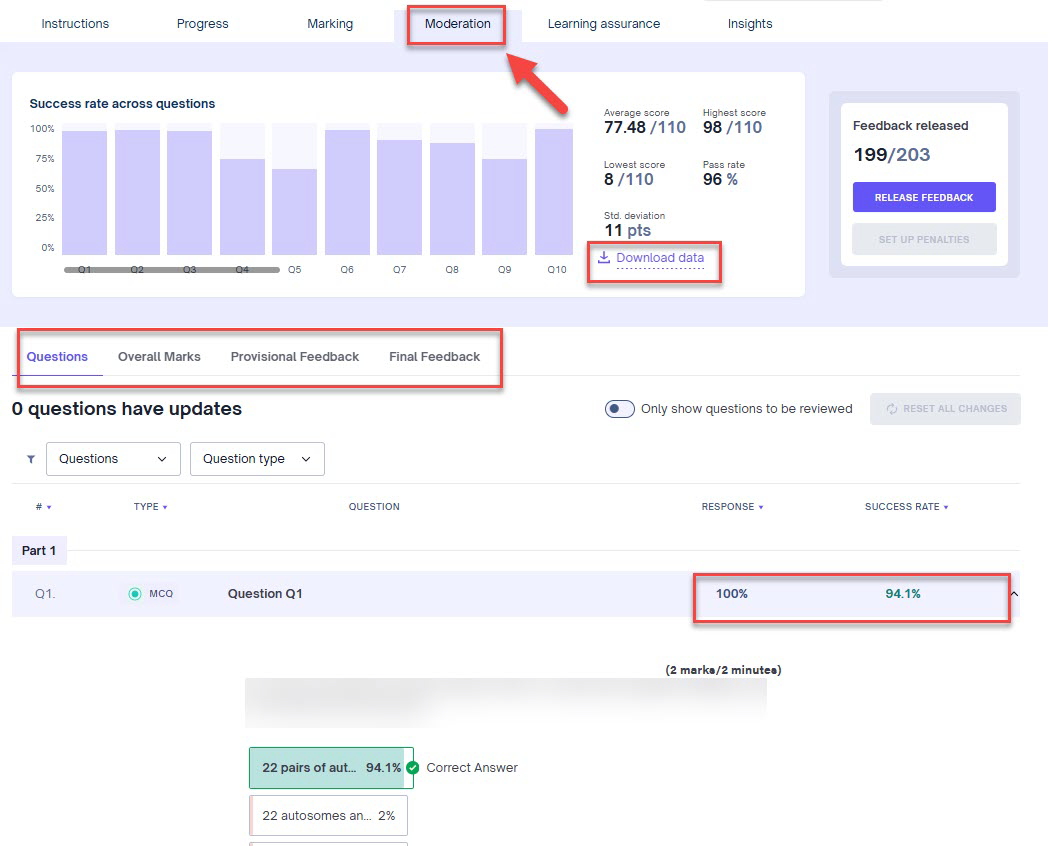
- Select the Moderation tab.
Learning analytics available
The Moderation Tab becomes available when a Cadmus Quiz is set up.
It includes:
- Different tabs to view data from either a per-question perspective or a per-student perspective
- Success rates and overall performance of the cohort
- Question section with data per question view stats on each question
- Downloadable report with each student’s total mark and marks per question.
Rating on learning analytics
Detailed: Comprehensive analytics with advanced reporting and visualisations, some insights.
Cadmus: Moderation tab
Gradescope: Online Assignment - quiz
How to access
In your Canvas Subject:
- Click the Assignments link in the subject navigation menu.
- On the Assignments page, select a Gradescope assignment.
- If required, click Load [assignment name] in a new window button.
- Select the Statistics tab.
OR
- Click the Gradescope link in the subject navigation menu.
- Click on the assignment name.
- Select the Statistics tab.
Learning analytics available
Reporting available is the same as for Gradescope: Statistics under Assessment insights.
Rating on learning analytics
Foundational: Essential learning analytics with standard reporting.
Gradescope: Online Assignment quiz
Rubric insights
Turnitin LTI 1.3: Insights
How to access
In your Canvas Subject:
- Click the Assignments link in the subject navigation menu.
- On the Assignments page, select a Turnitin LTI 1.3 assignment.
- Click on the Insights tab.
- Review the table.
Learning analytics available
The Insights tab lists:
- All students
- Their grade
- How they have been marked against each criteria in the rubric
- Download button with the same Submission List as listed under Assessment insights.
Rating on learning analytics
Foundational: Essential learning analytics with standard reporting.
Turnitin: Insights
GoReact: Rubric report
How to access
Currently for pilot use only.
In your Canvas Subject:
- Click the Assignments link in the subject navigation menu.
- On the Assignments page, select a GoReact assignment.
- If required, click Load [assignment name] in a new window button.
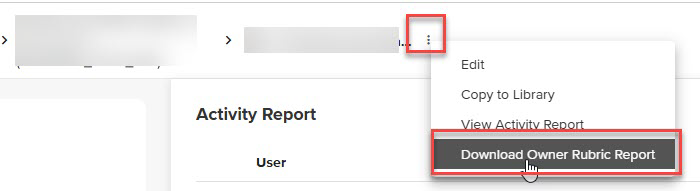
- Click the 3 dots next to the Assignment name in the header.
- Click Download Owner Rubric Report.
Learning analytics available
CSV download with:
- Rubric and assignment details
- Assessor details
- Date and time of rubric marking
- Marks for each student against each rubric criteria
- Total marks
Rating on learning analytics
Foundational: Essential learning analytics with standard reporting.
GoReact: Rubric report
Accessibility insights
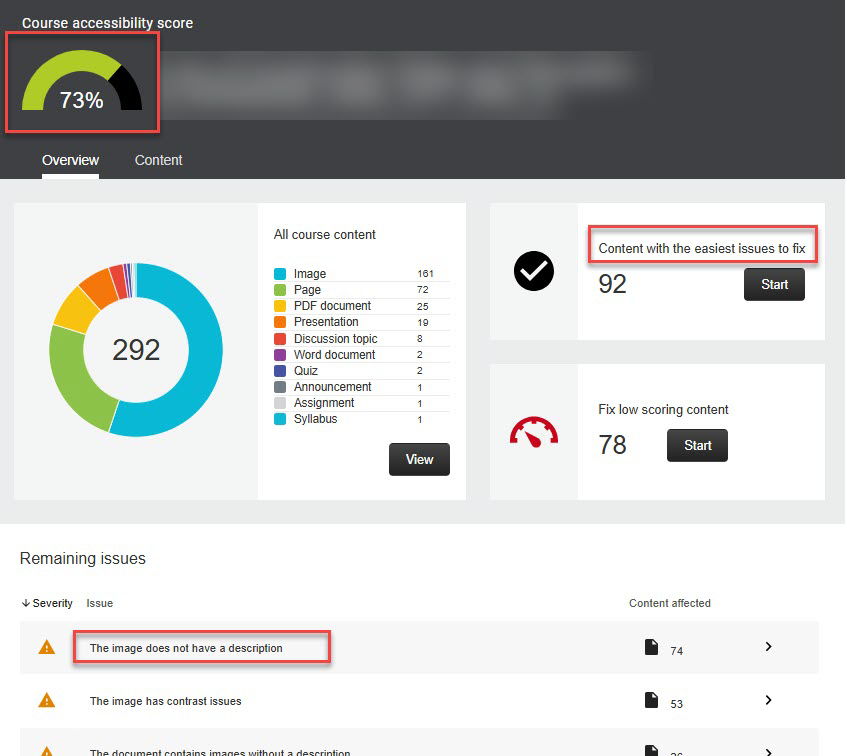
Ally: Accessibility report
How to access
In your Canvas Subject:
- Click the Accessibility link in the subject navigation menu.
- If the link is not available:
- Click the Settings link in the subject navigation menu.
- Click the Navigation tab.
- Drag Accessibility report to the upper section.
- Click Save.
Learning analytics available
Reviews the subject and identifies accessibility issues and guides the user through making improvements to accessibility.
Rating on learning analytics
Detailed: Comprehensive analytics with advanced reporting and visualisations, some insights.
Ally: Accessibility report
UDOIT
How to access
In your Canvas Subject:
- Click the UDOIT link in the subject navigation menu.
- If the link is not available:
- Click the Settings link in the subject navigation menu.
- Click the Navigation tab.
- Drag UDOIT to the upper section.
- Click Save.
Learning analytics available
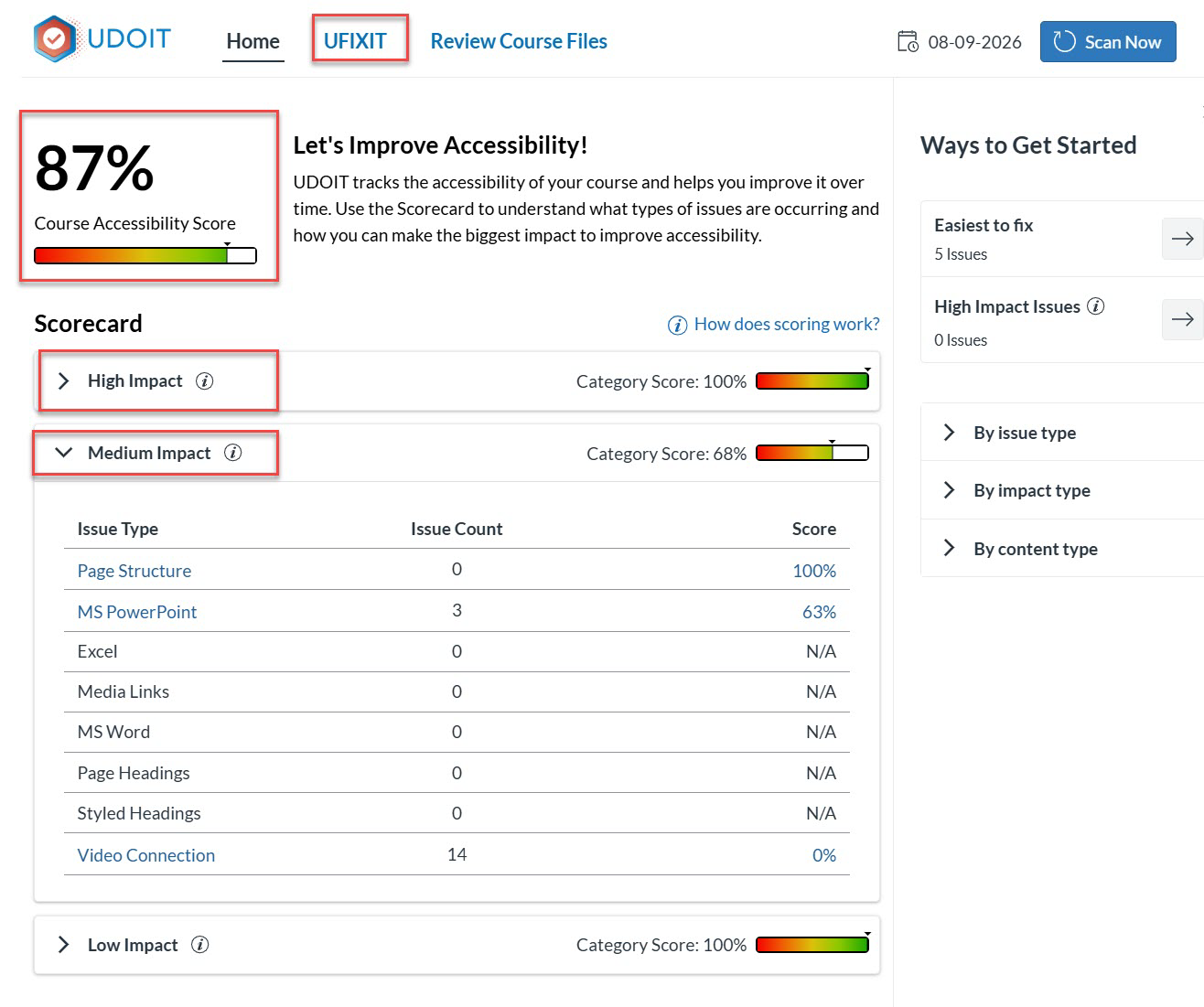
Reviews the subject and provides insights into the most impactful changes to make to improve accessibility.
Does provide ability to convert PDF and DOCX files into Canvas pages.
Rating on learning analytics
Detailed: Comprehensive analytics with advanced reporting and visualisations, some insights.
UDOIT: Subject scan
Academic integrity insights
Cadmus: Learning Assurance analytics
How to access
In your Canvas Subject:
- Click the Assignments link in the subject navigation menu.
- On the Assignments page, select a Cadmus assignment.
- If required, click the Go to Cadmus button.
- Select the Learning Assurance tab.
Learning analytics available
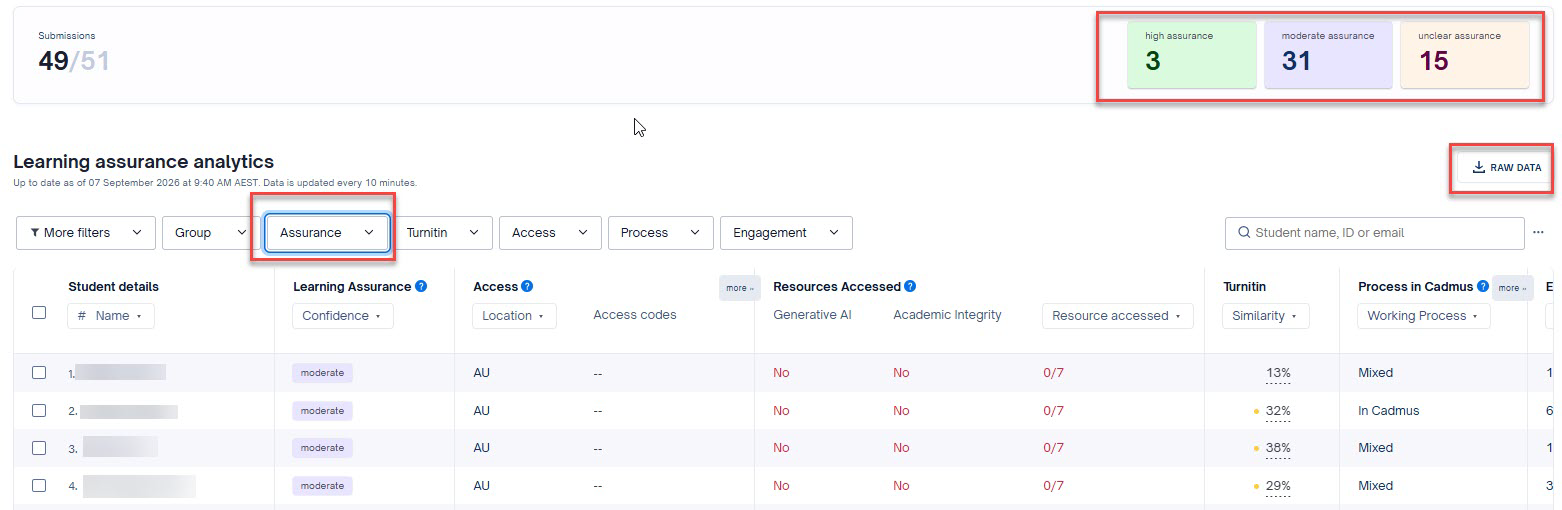
Analytics that give students an Assurance rating based on:
- Similarity scores
- Editing time
- Cut and paste behaviour
- Access behaviour
Provides overall assurance rating numbers and ability to filter and sort on different Learning Assurance metrics.
Downloadable report (raw data) has detailed assessment and learning assurance for each student.
Rating on learning analytics
Detailed: Comprehensive analytics with advanced reporting and visualisations, some insights.
Cadmus: Learning Assurance
Respondus LockDown Browser: Early Exit report
How to access
In your Canvas Subject:
- Click the LockDown Browser link in the subject navigation menu.
- Find the quiz with LockDown Browser required.
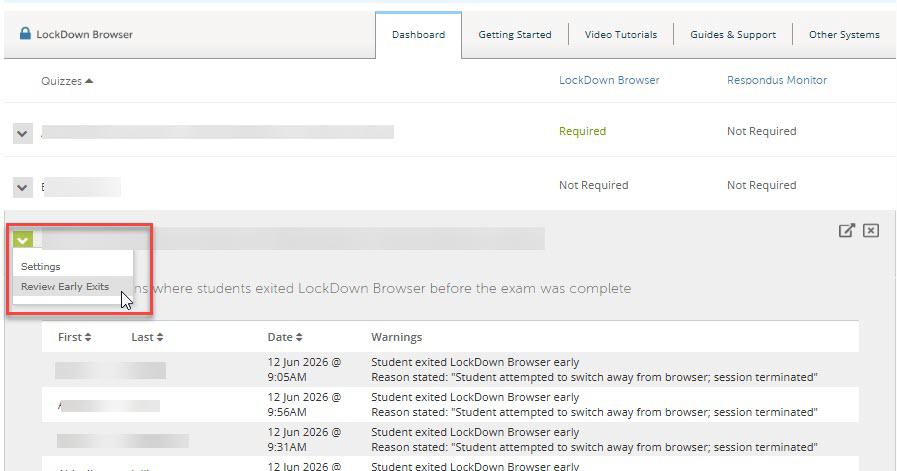
- Click the down arrow next to the quiz name.
- Select Review Early Exits.
Learning analytics available
Lists students who have an early exit of Respondus recorded against them and the reason.
Rating on learning analytics
Basic: Minimal data collection and reporting.
Respondus LockDown Browser: Early Exit report
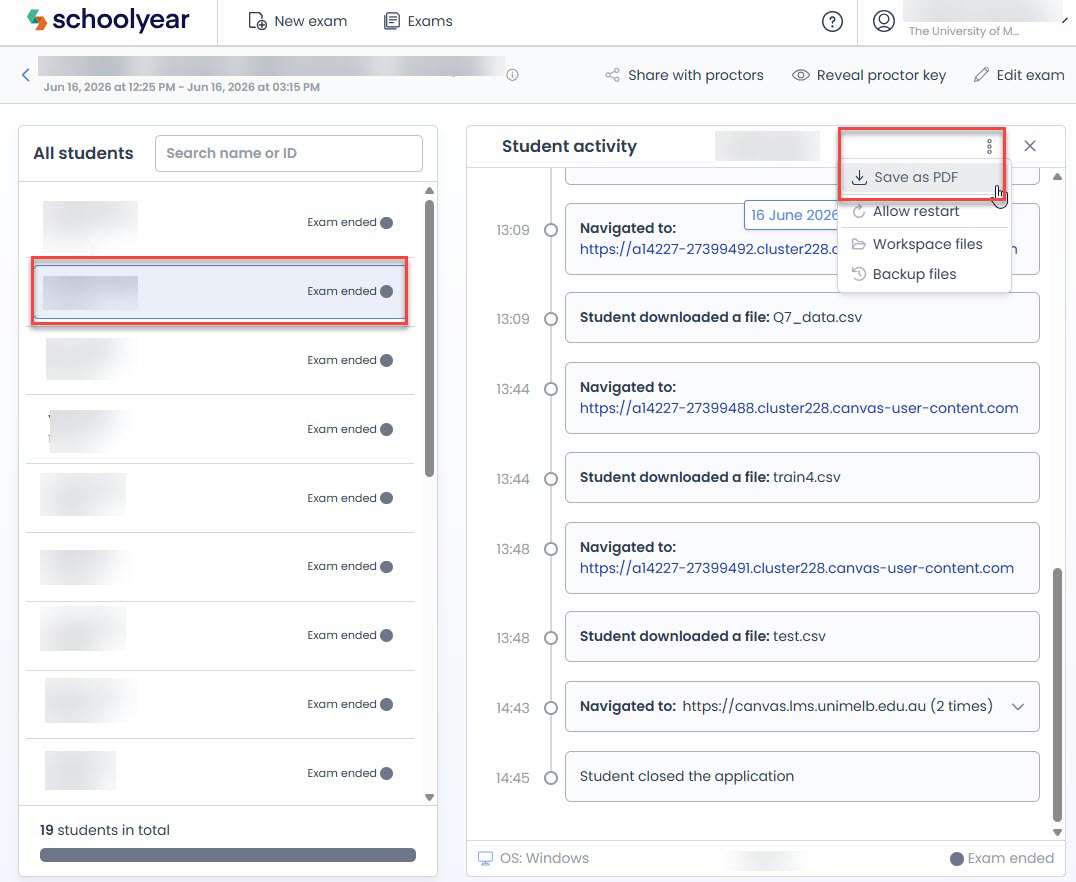
Schoolyear Lockdown Browser: Dashboard
How to access
Currently for pilot use only.
In your Canvas Subject:
- Click the Schoolyear link in the subject navigation menu.
- Find the quiz.
- Click the Dashboard button.
Learning analytics available
Click on a student name to view all the student activity within Schoolyear against timestamp.
Rating on learning analytics
Foundational: Essential learning analytics with standard reporting.
Schoolyear: Dashboard