Securing your phone
Think about how much personal information lives on your phone: photos, videos, contacts, messages, credit cards, even your exact location through GPS. With so much of your life stored in one small device, it’s vital that you keep it secure and up to date.

Three simple tips
Below are three quick and easy things you can check right now that will instantly boost your device’s security. Each takes less than a minute and can make a big difference in keeping your personal information safe. Once you've done the basics, you can continue on to the extra credit task of reviewing your permissions to make sure you're only sharing the information you want, with the apps and people you trust.
Lock screen and biometrics
You’d be surprised how many people still haven’t done this! Locking your phone with a PIN or password, and using your fingerprint or face scan helps protect your data if your phone is ever lost or stolen.
Use a strong pin/password
If you already have a pin/password, make sure it’s not something easy to guess — like your birthday, pet’s name, or repeating numbers such as 0000 or 8888. A strong passcode is one that’s unique and not easily tied to you.

Turn on automatic updates
Updates often include important security fixes that protect your device from the latest threats. Both iOS and Android turn this on by default, but it’s worth checking. This setting is usually under "Software Update."
Review your privacy permissions
This one takes a little longer, but it’s well worth your time. It’s all about taking stock of what information you’re sharing, and who you’re sharing it with. Almost every app will ask for access to something on your phone, like your location, camera, microphone, photos, videos, or contacts. Reviewing these permissions gives you the chance to make sure only the apps and people you trust can see that information.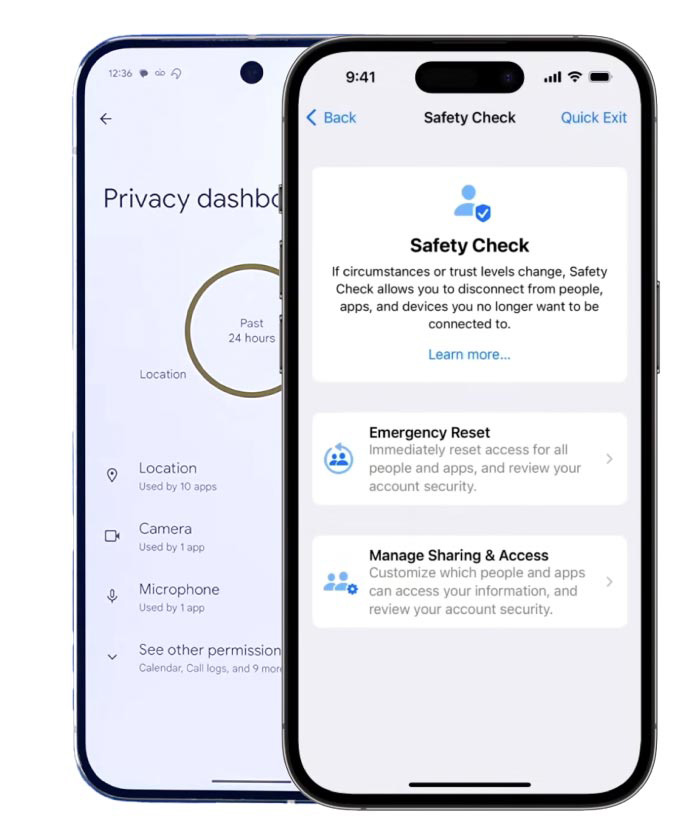
- On iOS: Apple’s handy Safety Check tool steps you through the process.
- Go to Settings > Privacy & Security > Safety Check
You can also visit Apple’s support site for more information, including a helpful video that guides you through each step.
- Go to Settings > Privacy & Security > Safety Check
- On Android: Google’s version is called the Privacy Dashboard.
- Go to Settings > Security & Privacy (or Privacy) > Privacy Dashboard
If your phone doesn’t have this option, you can check permissions manually by following this Google support article or Samsung article.
- Go to Settings > Security & Privacy (or Privacy) > Privacy Dashboard
Taking a few moments to review these settings helps you stay in control of your data and puts you (not your apps) in charge of what your phone shares.