Practical example of an accessible subject
The web is full of fabulous guidance on digital accessibility. There are guides on core accessibility skills, examples of accessibility personas, and free accessibility testing tools.
For University of Melbourne staff working in our LMS, you can use our guide to creating accessible subjects in the LMS, use Ally to test your subject, or even pin up a copy of our printable designing for diverse learners poster (PDF 109.7 KB).
Even so, one of the most popular requests we get is: “Can I see an example?”
Well, now you can! The following subject, Material and Energy Balances, is as accessible as we could make it, and the subject coordinator has kindly given us permission to share screen shots.
Subject navigation
Accessible subject navigation:
- Starts with a concise, easy-to-use home page
- Makes it easy to find crucial areas like contact information, assessments and learning materials with one click
- Maintains consistency as much as possible with other subjects in the same course.
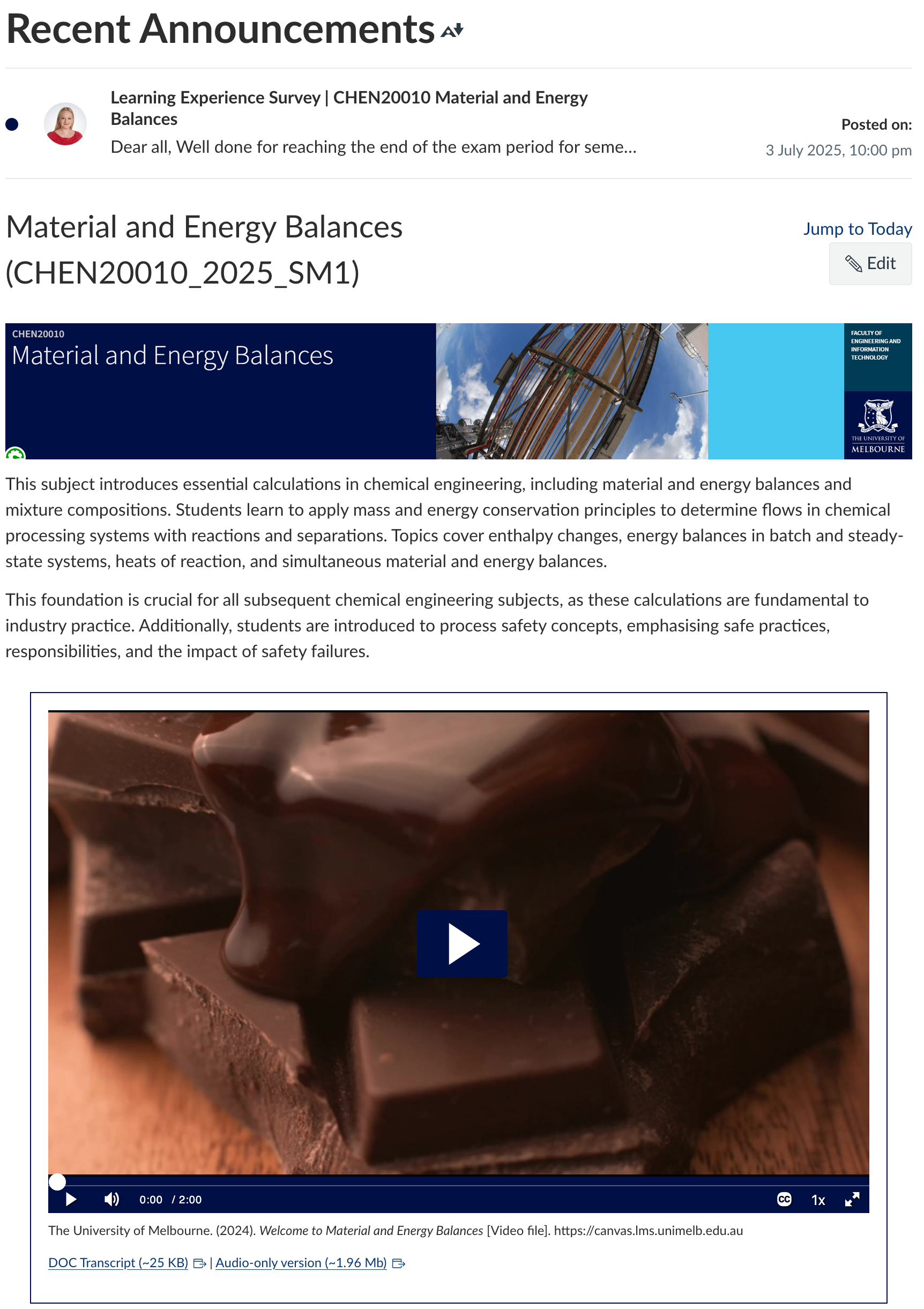
In Figure 1, we see a home page with minimal text before the welcome video. An alt text on the banner (indicated by the green speedometer) makes the banner readable for students using assistive tech, and for students whose internet connections are spotty. The welcome video contains accurate captions, which are essential, as well as a transcript in an accessible format (Word), which is an added bonus.
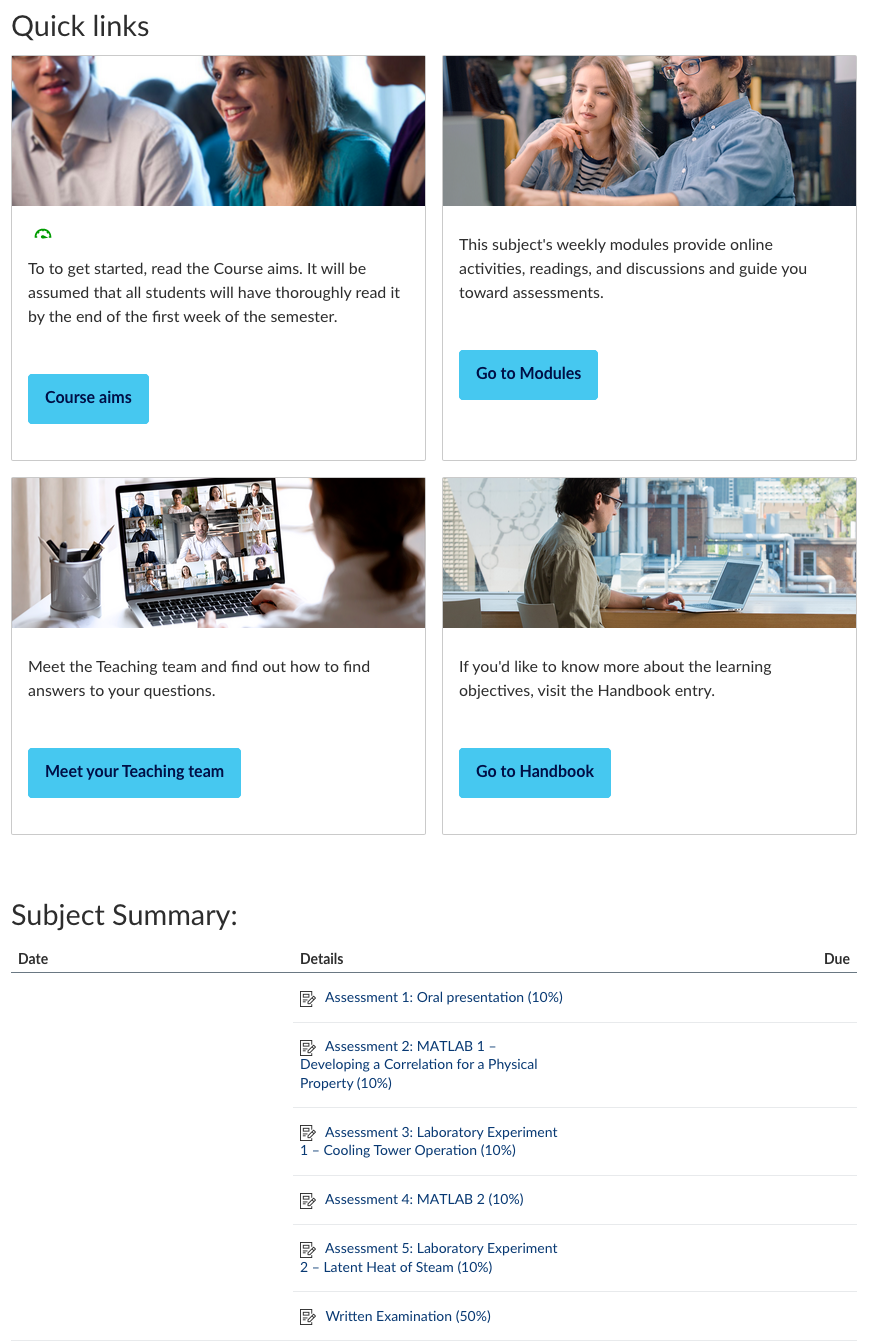
In Figure 2, we see accessible tiles with large buttons to frequently used areas. The area is differentiated with a heading, which uses the Heading 2 style for navigability. The code behind the ‘table’ layout of the tiles is in fact accessible, unlike most tables. The images have alt texts or have been marked as decorative, as shown by the green speedometer, and the link texts are unique and meaningful. Finally, links to assessments in the Subject Summary mean that students can get to each assessment with one click. Once due dates are added, those are also visible on the home page.
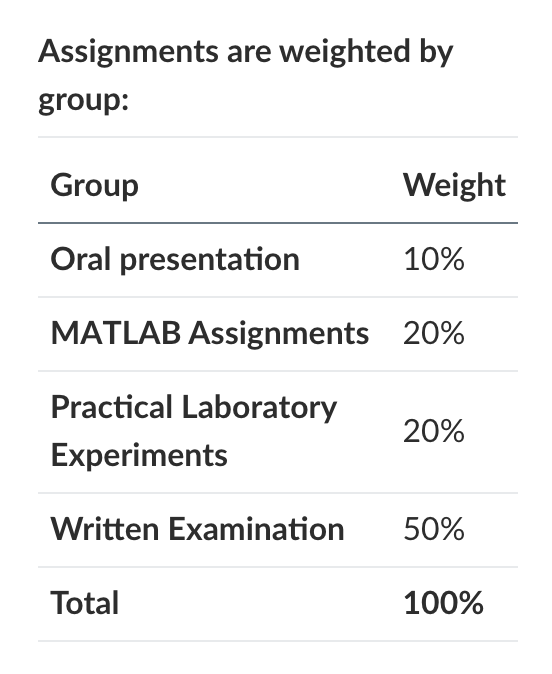
Finally, in Figure 3, we see a secondary list of assignments with weightings. By changing the name of each Assignment Group in Canvas to something concise, we have made this table easy to read:
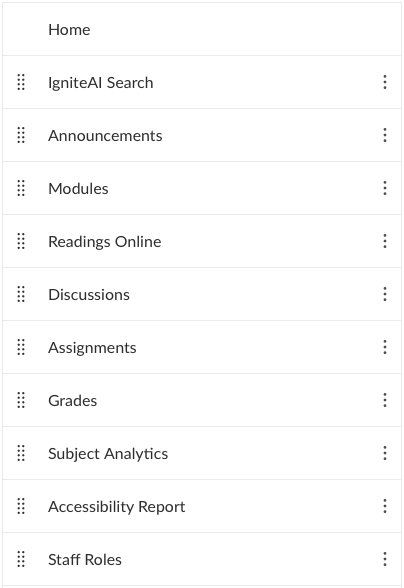
We haven’t taken a screen shot of the menu for Material and Energy Balances. However, students who are neurodivergent, as well as students using any kind of assistive tech, will benefit if the subject menu has the same items in the same order in each of their subjects. Such consistency may not always be possible, but individual courses might be able to agree on an order for essential items like assignments and modules.
In Figure 4, we show one example menu order for consideration. Note that IgniteAI Search is enabled: IgniteAI Search gives students an alternative way to find information in the subject, which is actually an accessibility guideline (see WCAG 2.4.5 Multiple Ways). The Subject Overview item is hidden because the Subject Overview has been made the Home page, so the additional menu item was redundant and potentially confusing.
Assessments
Accessible assessments:
- Have concise, unique names and numbers
- Are built into LMS assignments or quizzes where possible
- Provide essential details like length and due date at the top
- Follow the usual web accessibility principles (using built-in heading styles, concise wording, etc).
Figure 5 shows that the assessment is numbered and has a concise name with a weighting. The essential information is shown at the top, with the exception of the length – in this case, the assessment length is pre-determined by the lab report format. The headings use the built-in Heading 2 style, and the lists use the built-in list styles. Only one word, ‘mandatory’, is written in red, and it uses a darker red on a white background. The link to the lab manual has unique, meaningful link text, and the attachment itself is accessible (signified here by the green speedometer pointing to the right).
While the instructions need to be long, the wording is as concise and clear as possible.
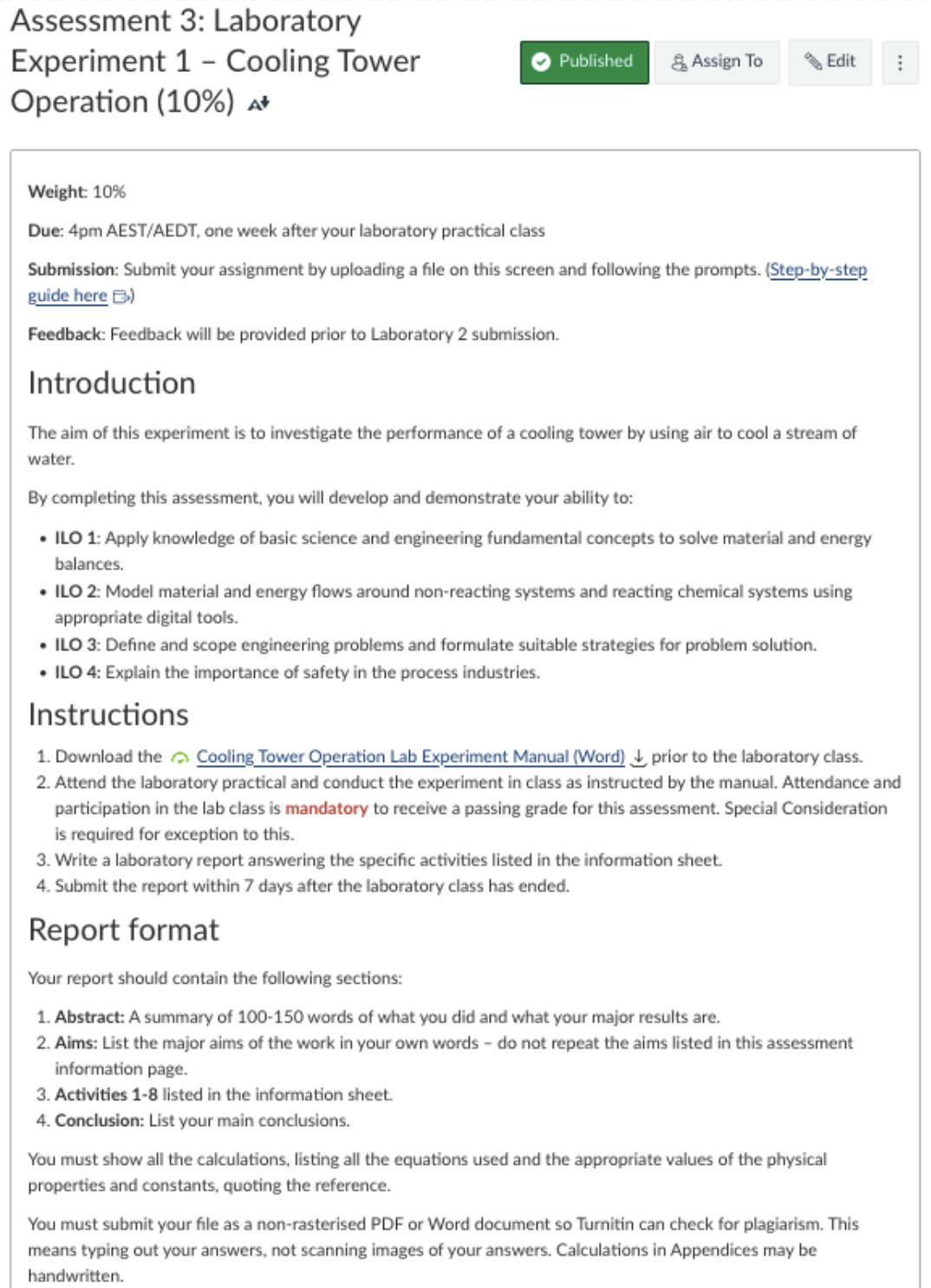
Note: It is also best practice to share the purpose of the assessment, as shown here, and to include a clear, concise rubric aligned with the intended learning outcomes of the subject. These are not accessibility practices in the ‘digital accessibility’ sense of the word, but they are recognised practices in Universal Design for Learning.
Pages
Accessible pages:
- Use built-in styles for headings, numbered lists and bulleted lists
- Start with Heading 2 for headings (and don’t skip heading levels)
- Maintain high colour contrast
- Use meaningful, unique link text
- Can be beautiful and interactive, using images, videos, accessible H5P activities and components from our custom interface elements.
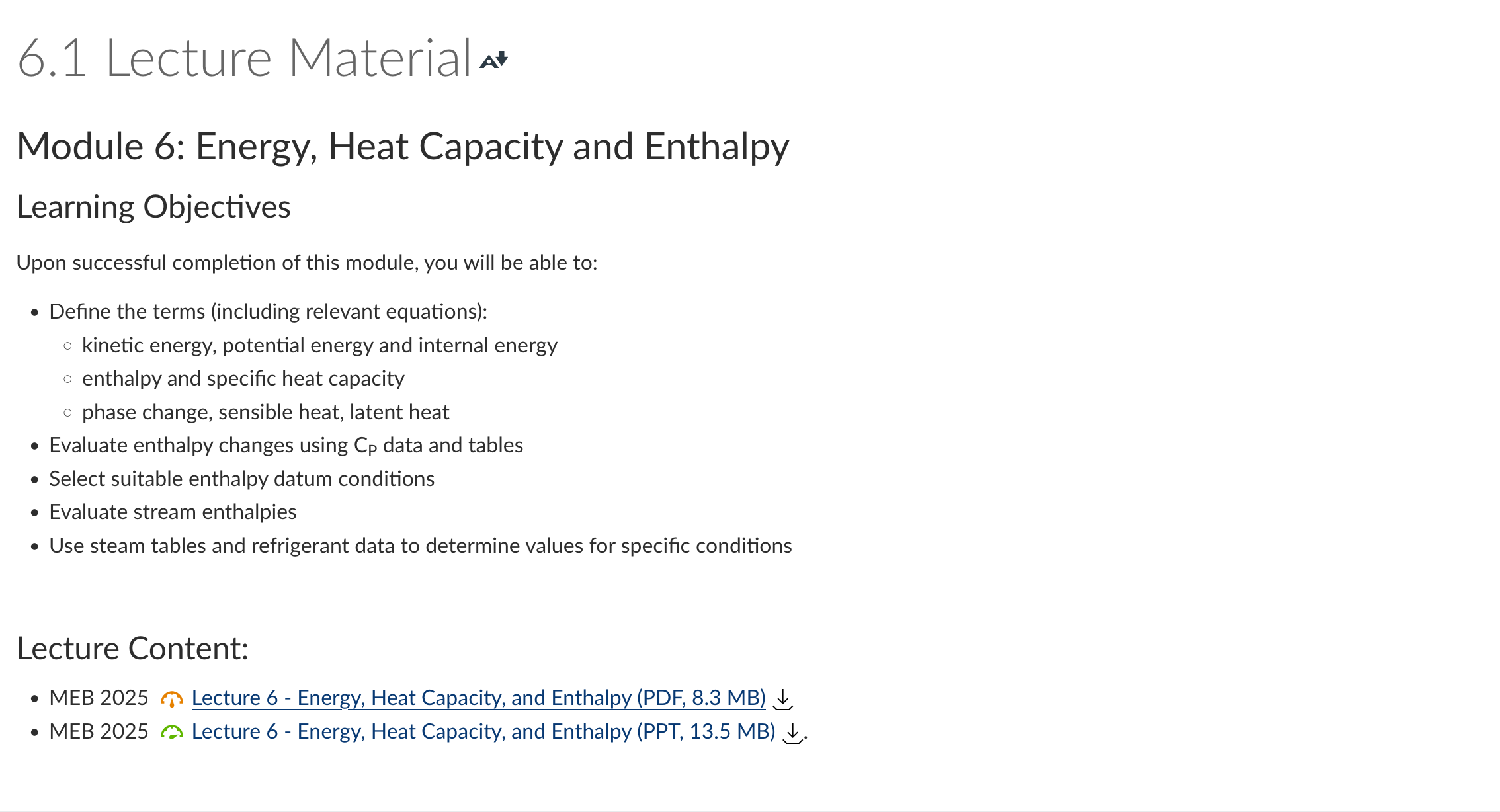
In Figure 6, the page links to two versions of the same slides. The PowerPoint file is more accessible, which is why the Ally speedometer is green and points to the right. The PDF file is less accessible, which is why the speedometer is orange and points up in the middle. However, the poor accessibility PDF file is not a functional problem for students or staff members because they can choose the PowerPoint version if they prefer to.
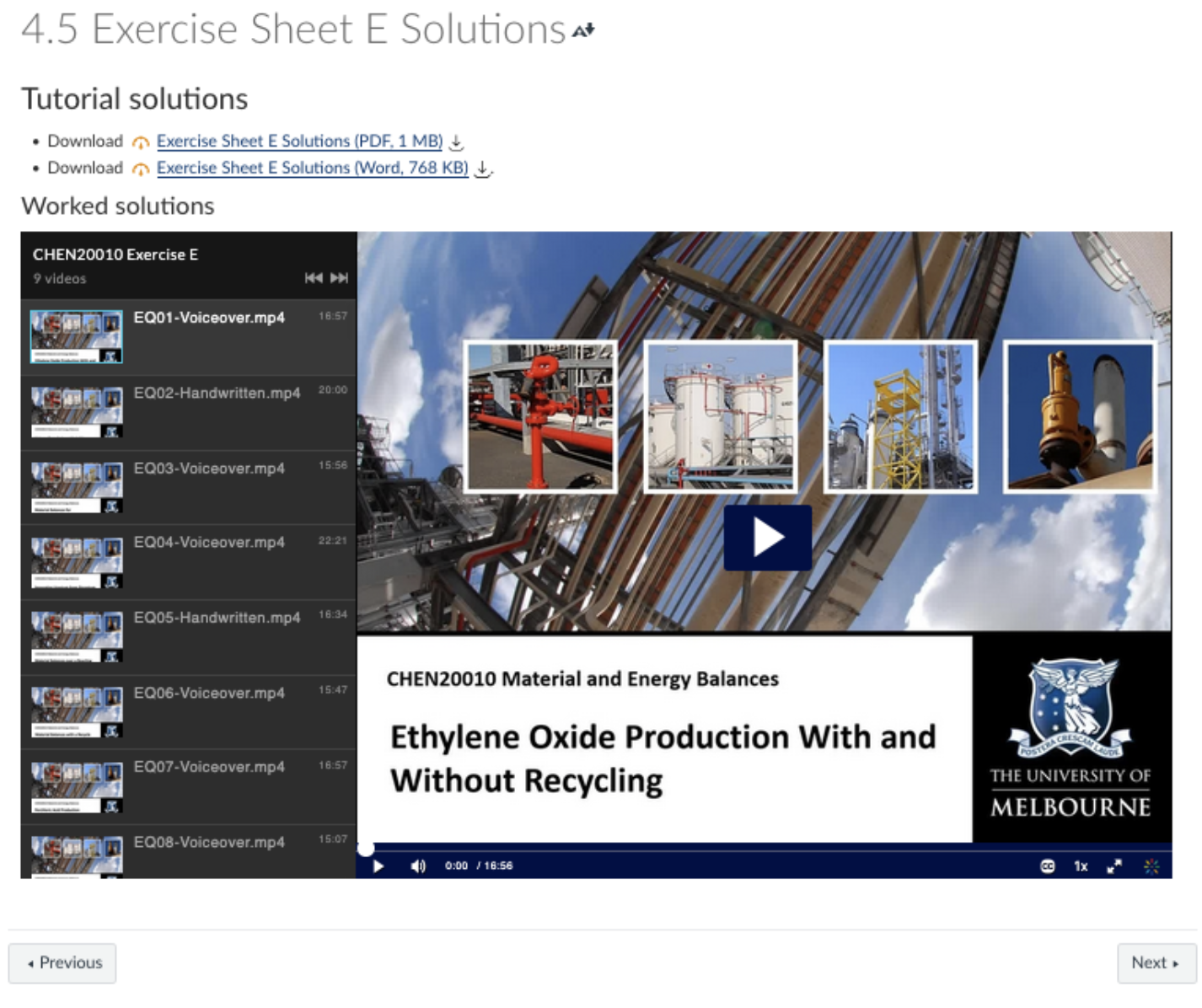
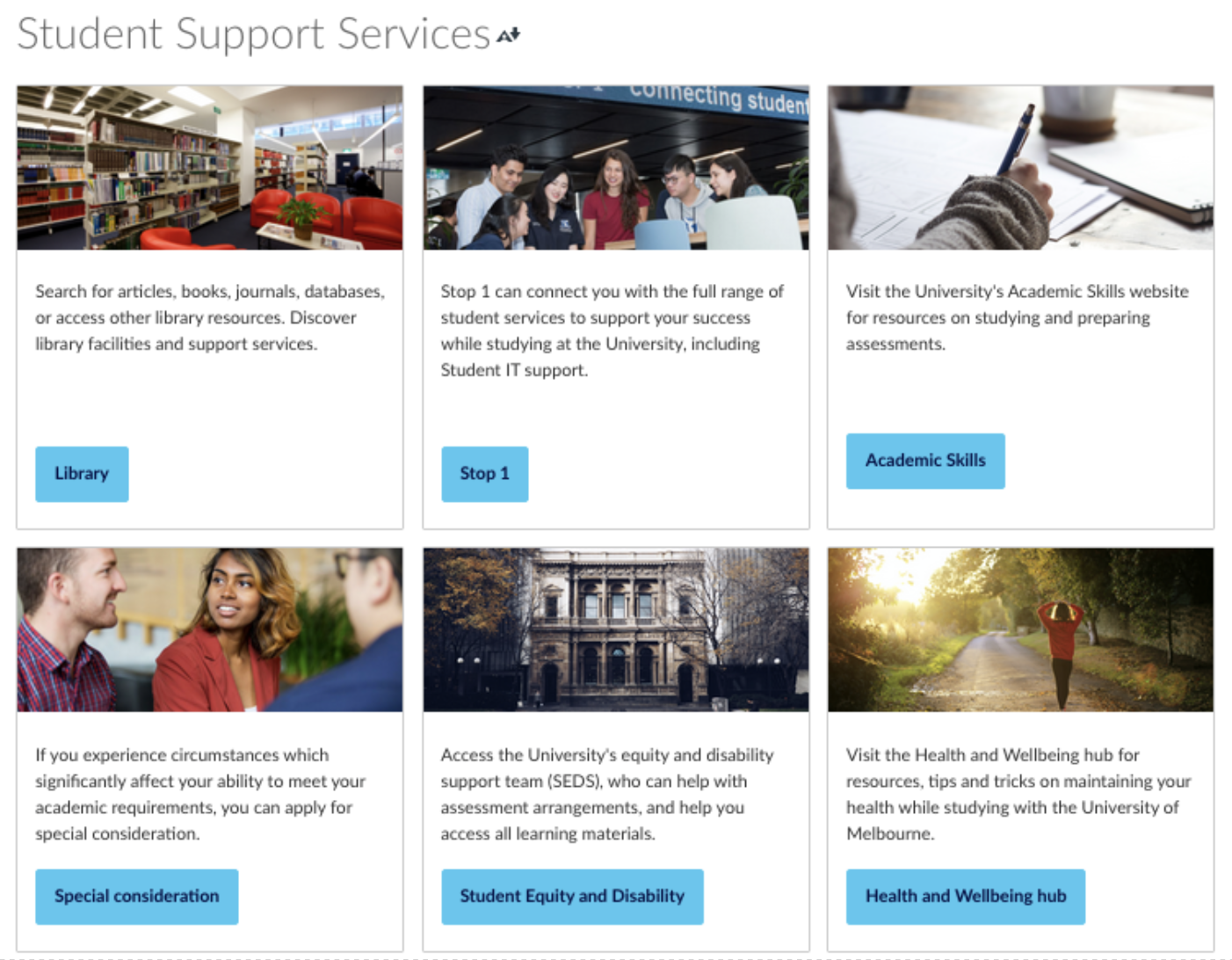
In Figures 7 and 8, you will see examples of pages with a video playlist, images, and button links. Colour and multimedia are still welcome in accessible pages! The main features here are the corrected captions for videos, the alt text for images, and the meaningful link text. Note that the exercise solutions are available in Word as well as PDF - it's essential to upload an alternative format alongside PDFs.
Examples using the LMS for site content instead of slides
If you’re delivering a subject online or using a flipped classroom model, you will probably end up with your learning materials in the LMS rather than slides. The same principles apply – using built-in styles, strong colour contrast, and meaningful link text, alt texts and captions. You’ll see here that pages can still be interactive and attractive.
In Figure 9, the heading hierarchy starts at Heading 2 and progresses to Heading 3. The link text is the title of the resource. We have the full reference entry for the video, including its URL, but we have removed the link from the URL so that it doesn’t get called out to users of assistive technology. And of course, the video has captions!

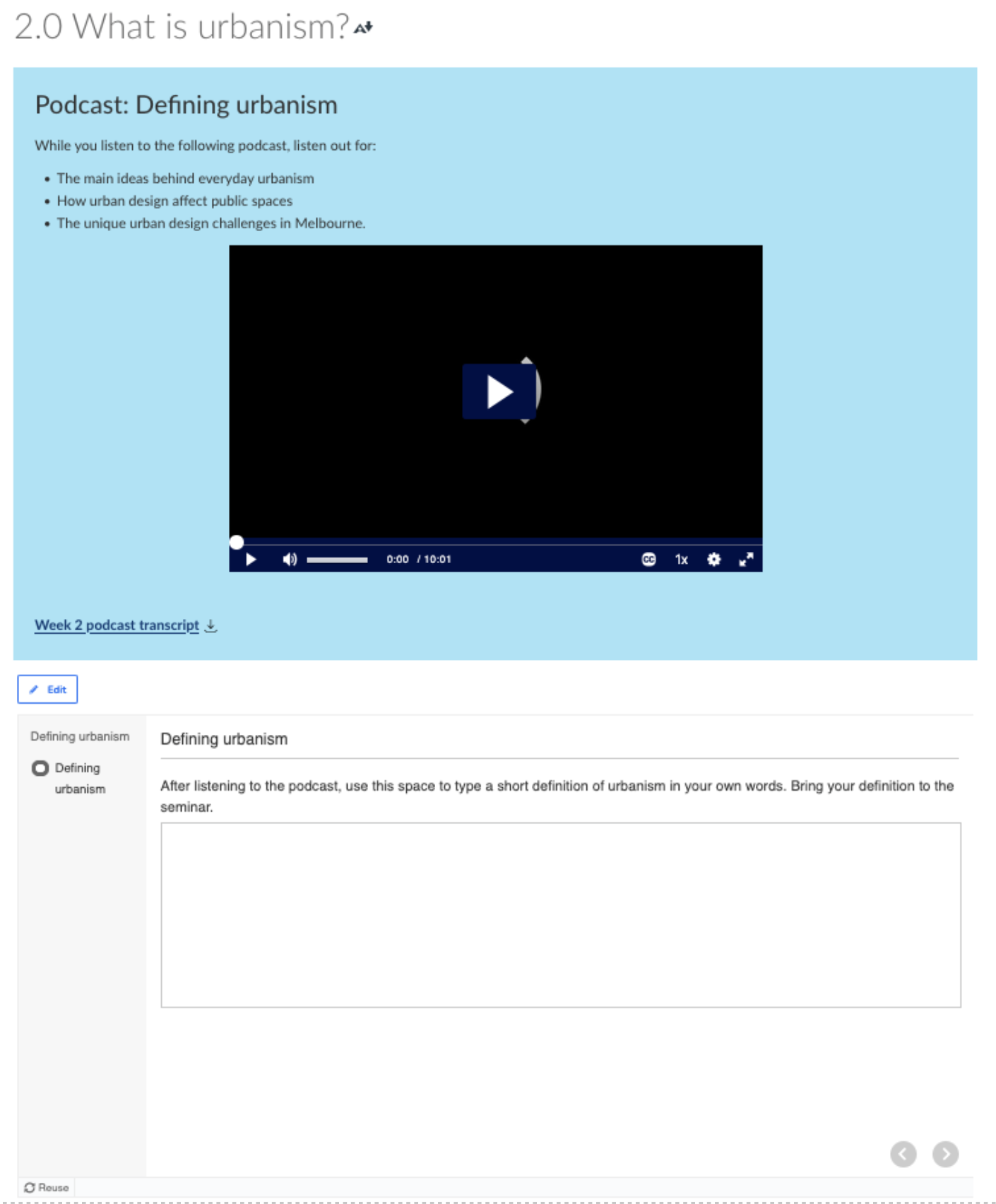
In Figure 10, you’ll see that we can still use coloured backgrounds in the LMS, as long as the contrast between the text and the background remains high. We have a transcript for the podcast, and the H5P activity is on the list of accessible H5P activities.
Slides
Accessible slides:
- Use unique slide titles
- Contain descriptive alt texts for images
- Use unique, meaningful text for links – or short links and QR codes for in-class display
- Maintain high colour contrast
- Are available to students in a format friendly to assistive technology, such as .pptx.
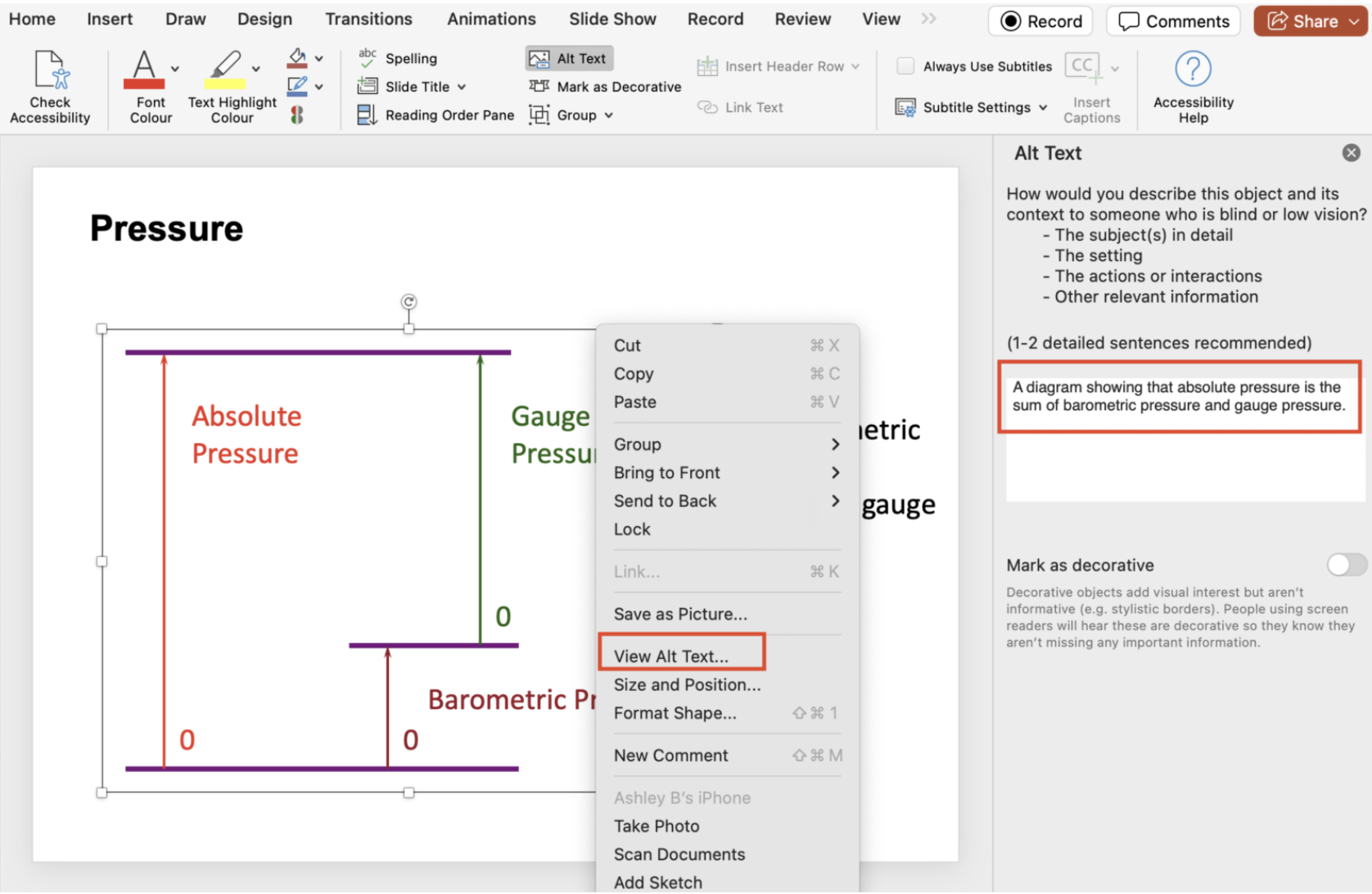
In Figure 11, we can see one example of an accessible slide. The slide has a unique slide title – ‘Pressure’ – and the text has strong colour contrast with the background. The image has an alternative text describing its contents, which is easy to find by right-clicking the image and selecting ‘View alt text’.
In fact, it’s quite easy to ascertain how accessible your PowerPoint slides are. In the ribbon at the top, open the ‘Review’ menu. In Review, select ‘Check Accessibility’ to open the Accessibility Assistant. The Assistant will then walk you through adding alt texts and unique slide titles, as well as correcting inaccessible colour combinations, links or tables.
Tip: You can get assistance writing alt texts. If your image does not contain proprietary, sensitive or confidential information, it’s possible to upload the image to Microsoft Copilot and ask it for an alt text. For more information you would like to protect, you can paste the image into a Canvas page and ask the Ally tool for an alt text. The Accessibility Assistant in PowerPoint doesn’t generate very useful alt texts (as of 2025), but both Copilot and Canvas can give you valuable starting points.
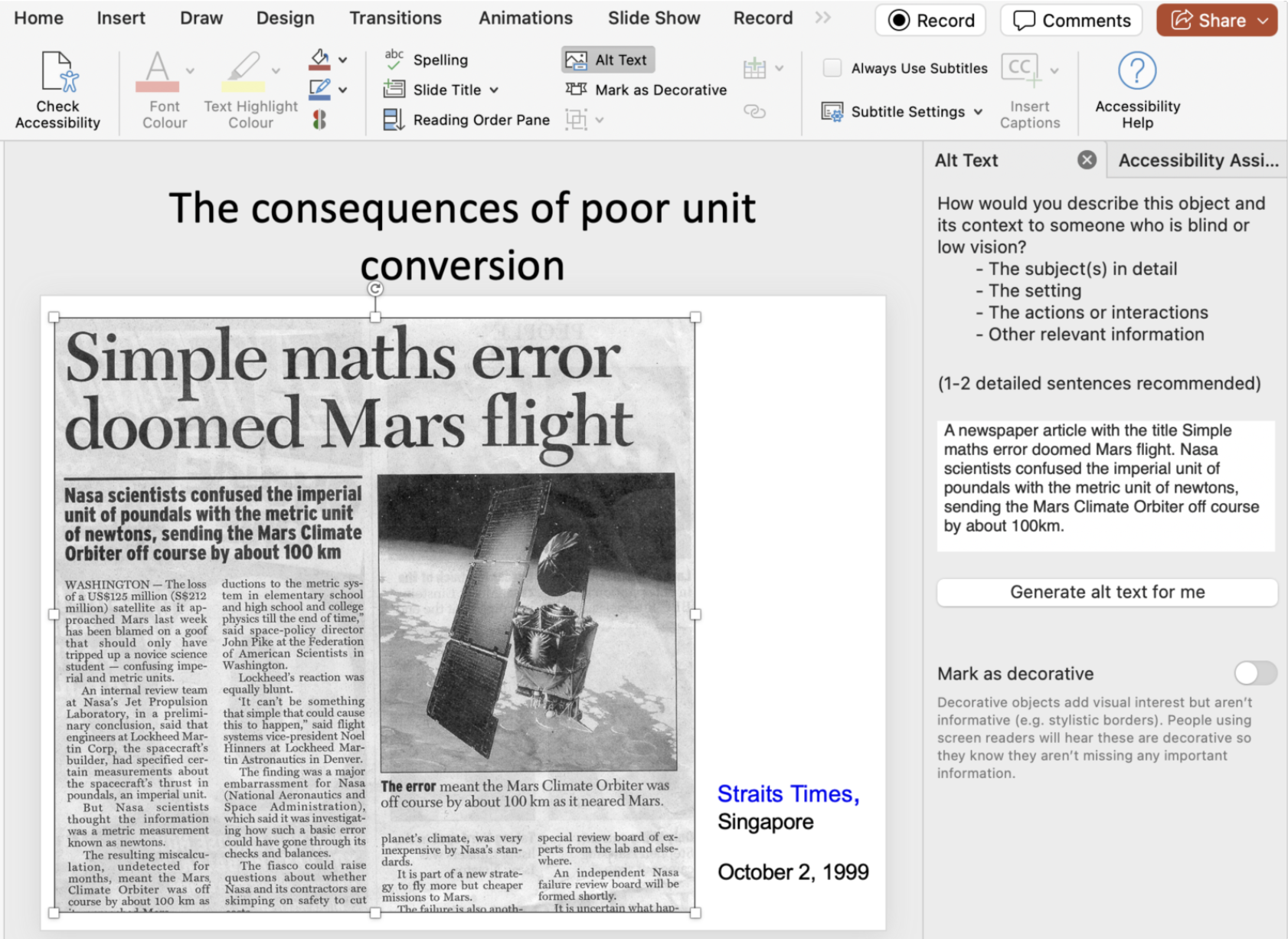
In Figure 12, you’ll see another image with an alt text – note how the alt text for the newspaper clipping is just a brief summary. You’ll also see that the slide title is in an odd spot above the slide. In this case, the lecturer didn’t want to devote space on the screen to a slide title. To preserve the visual aesthetic while making the slide accessible, we added a ‘hidden’ slide title above the main body of the slide. Assistive technology can use the hidden title to help users navigate the slide deck, but the title won’t display in Presentation mode.
Microsoft PowerPoint has robust accessibility features. It’s a great tool to use for slides if possible.
In some disciplines, we know it can be difficult to avoid LaTeX slide decks. In other cases, lecturers may be experimenting with the other slide deck tools on the market. We don’t want to override your subject needs or dampen your creativity!
However, please be aware that these tools often create inaccessible outputs, especially when they require export to .pdf format. There are tools available in the LMS for downloading alternative formats; however, these tools do not work well on PDFs. The export process strips out the hidden structural elements that these tools need to create a readable document.
When using alternative slide deck tools, consider the accessibility points above, and experiment with the accessibility features built into the tool. The ultimate document will be accessible to more people than it would be if you did nothing, but it may not be accessible to everyone.
Resources
Guides
- Creating accessible subjects in the LMS – our companion guide
- PDF accessibility – our official guidance regarding the PDF format
- Ally – the tool in Canvas for writing text alternatives and providing accessibility guidance
- Make your PowerPoint presentations accessible to people with disabilities (External Microsoft guide).
Tips in video format
These short videos have all been created by staff who teach at the University of Melbourne. They provide tips on designing for diverse learners that you can act on right now.
- From Barriers to Bridges: The truth about PDFs
- Alt texts and alternative versions
- Accessible teaching with LaTeX
- Consistency in LMS sites
- Providing a tour of the LMS.
A3 posters for printing
- Designing for diverse learners (PDF 109.7 KB)
- The problem with PDFs #1 (PDF 67.1 KB)
- The problem with PDFs #2 (PDF 73.7 KB).
First published: 03 Sep 2025